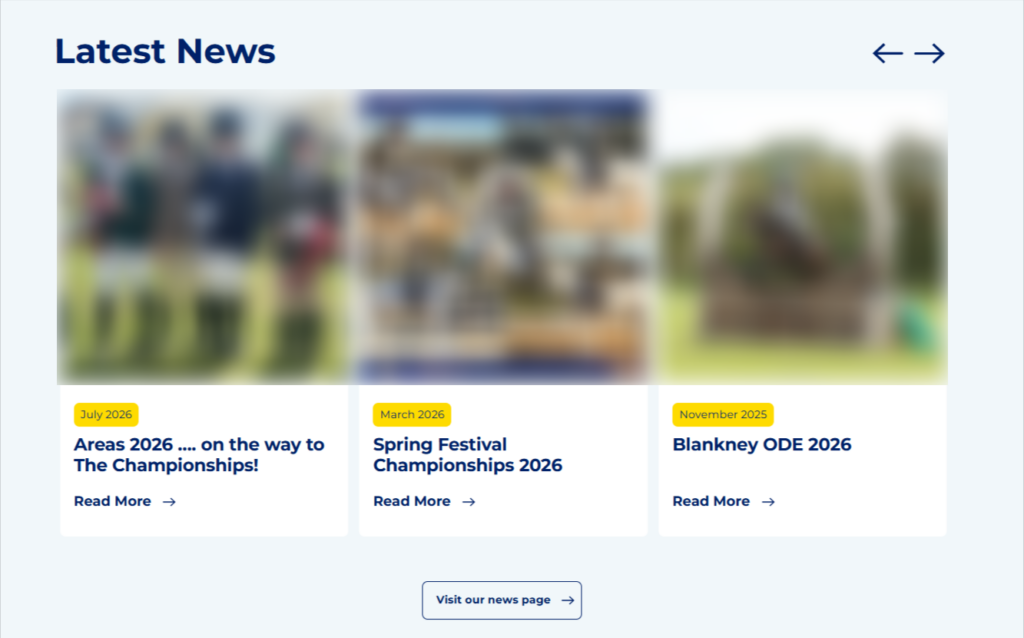
News Articles are a great way to keep members, parents and volunteers informed about everything happening within your Branch. Whether you’re sharing rally reports, competition results, upcoming events or celebrating member achievements, regular news updates help keep your website active and engaging.
An up-to-date news section demonstrates that your Branch is busy and welcoming, while also providing visitors with useful information about recent and upcoming activities. News articles can be published immediately, saved as drafts for later review, or edited after publication if information changes
Accessing the News Area
To create or edit a News Article:
- Log in to your Branch website.
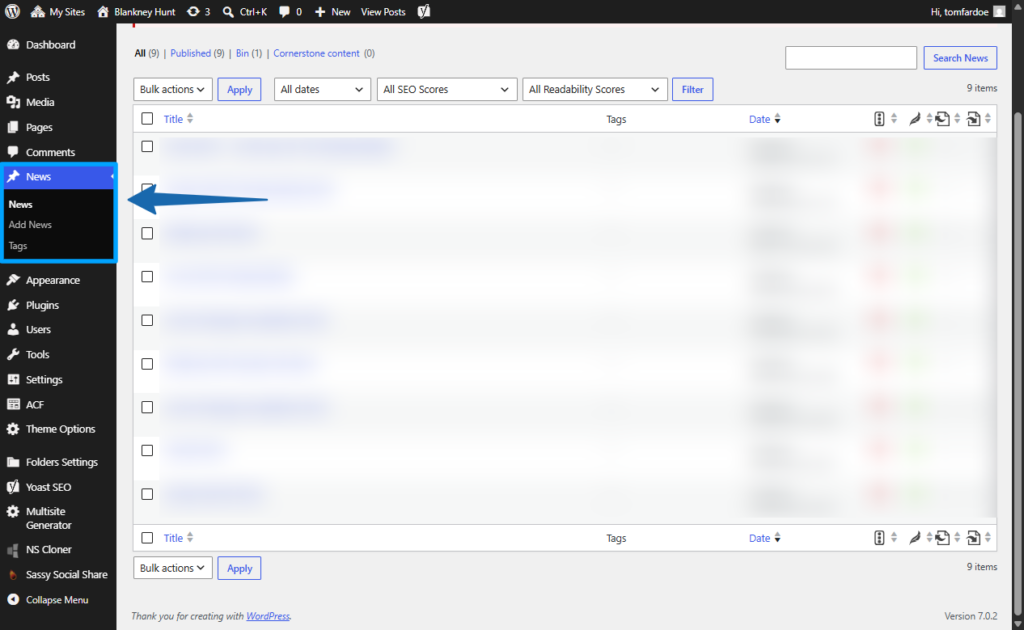
- From the WordPress Dashboard, select News from the left-hand menu.
- You’ll see a list of all existing News Articles.
- To create a new article, select Add New.
- To edit an existing article, select the article title from the list
Creating a New News Article
Step 1 – Add an Article Title
Start by entering a clear and descriptive article title.
Good examples:
✅ Spring Rally Success
✅ Summer Camp Bookings Now Open
✅ Congratulations to Our Area Competition Teams
✅ Volunteer Appreciation Evening
Avoid vague and timeless titles such as:
❌ Update
❌ News
❌ Important Information
Your title should immediately tell visitors what the article is about.
Step 2: Add Your Content
The content area works in the same way as editing a page. You can add text, headings, images and other content blocks.
When building out an article we always suggest using a variety of different WordPress blocks for the best outcome, rather than typing directly into the WordPress article.
For example, even using just a Full Width text block and a 50/50 Text & Image block for a simple article produces a clean and pleasing article with correctly formatted images inline with the article.
Step 3: Adding a Feature Image
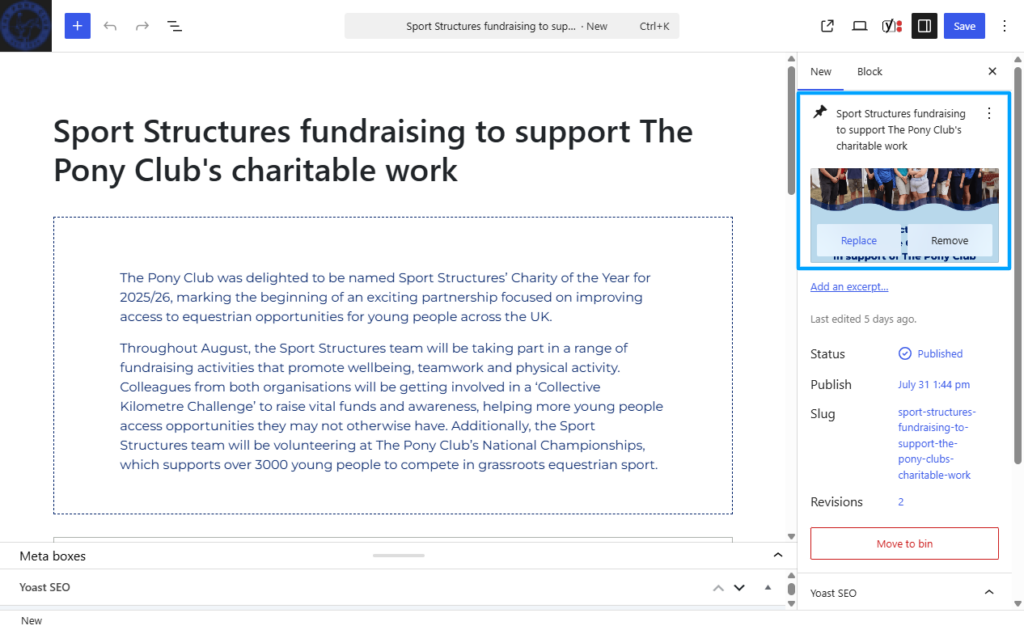
A Feature Image is the primary image displayed alongside your News Article and on any on page links pointing to your article.
To add a Feature Image:
- Locate the Feature Image section within the article editor.
- Upload a new image or select an existing image from the Media Library.
- Save your selection.
Feature Images help articles stand out and make the News section more visually appealing, if you have the time or expertise we recommend creating a graphic on Canva! Find a beginners user guide here
Save Draft or Publish
Saving as a Draft
If your article isn’t ready to go live:
- Select Save Draft.
- The article will only be visible to website administrators.
Publishing
When your article is ready:
- Review the content.
- Check spelling and grammar.
- Select Publish.
The article will then appear on your website’s News section!
Editing an Existing Article
To make changes to an already published article:
- Open the News section.
- Select the article you wish to edit.
- Make your updates.
- Select Update to publish the revised version
News on the Home Page
If you are regularly posting news articles on your Branch site they will appear clearly on your Branch Home page with a large image (this will be the featured image).
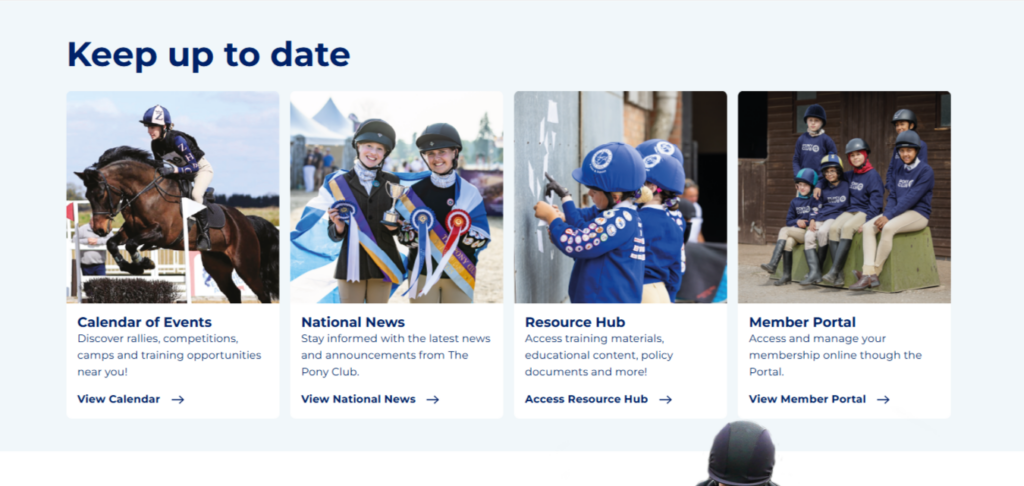
If you have a period of inactivity and haven’t posted articles on your Branch site for a number of months, a keep up to date block will be displayed in its place.