Skip to content
  • Home
  • Branches
  • Centre Proprietors
  • Centre Coordinators
  • Area Reps
  • User Guides
  • Events
  • Support

PELHAM Basics

3
  • Accessing PELHAM
  • Accessing PELHAM – Area Representatives
  • Accessing Pelham on Mobile & Tablet

Branches

3
  • Accessing PELHAM – Branches
  • Updating Branch Committees
  • Member Approvals

Centres

2
  • Accessing PELHAM – Centres
  • How to view Centre Coaches

Branch Website Management

6
  • Accessing your Branch Site WordPress
  • Building Pages with Content Blocks
  • Updating Homepage Content
  • Managing Website Navigation Bars
  • Creating and Managing News Articles
  • Managing Page Headers

Coaches and Volunteers

7
  • Coach Types
  • The Coach Agreement
  • Coach Certifications
  • Assessors
  • Adding Coach Qualifications
  • How to Deactivate a Coach Qualification
  • How to add CPD Activities

Events

7
  • Reporting on Events in PELHAM
  • Online Booking Systems
  • My Riding Life – The Pony Club
  • Horse Events – The Pony Club
  • Horse Monkey – The Pony Club
  • Entrymaster – The Pony Club
  • Manually Creating New Events

Achievements

3
  • Achievements – Basics
  • Deactivating Achievments
  • Achievements – Bulk Upload

Contacts

5
  • What is a Contact?
  • How to Create a Contact
  • Contacts – Membership Tab
  • Update Contact Email Address
  • Sending Emails from PELHAM

Views & Reporting

3
  • Searching and Views
  • Exporting Data from PELHAM
  • Creating a new view
View Categories
  • Home
  • Pelham Support Guides
  • Branch Website Management
  • Building Pages with Content Blocks

Building Pages with Content Blocks

Every page on your Branch website is built by combining one or more content blocks.

Think of content blocks as building bricks. Rather than typing everything into a single document, pages are assembled using different sections that each serve a purpose. By combining these sections in different ways, you can create pages that are clear, engaging and easy for visitors to navigate.

When creating a new page, it’s helpful to think about the structure of the page before you start adding content. A well-organised page is often easier to read than one containing large amounts of uninterrupted text.

What Are Content Blocks?

A content block is a pre-built section that performs a specific function.

Examples include:

  • Text blocks
  • Image blocks
  • Gallery blocks
  • Video blocks
  • Contact blocks
  • News blocks
  • Content and image layouts

Each block has its own settings and can be combined with other blocks to create a complete page.

Adding a New Block

When editing a page:

  1. Open the page you wish to edit.
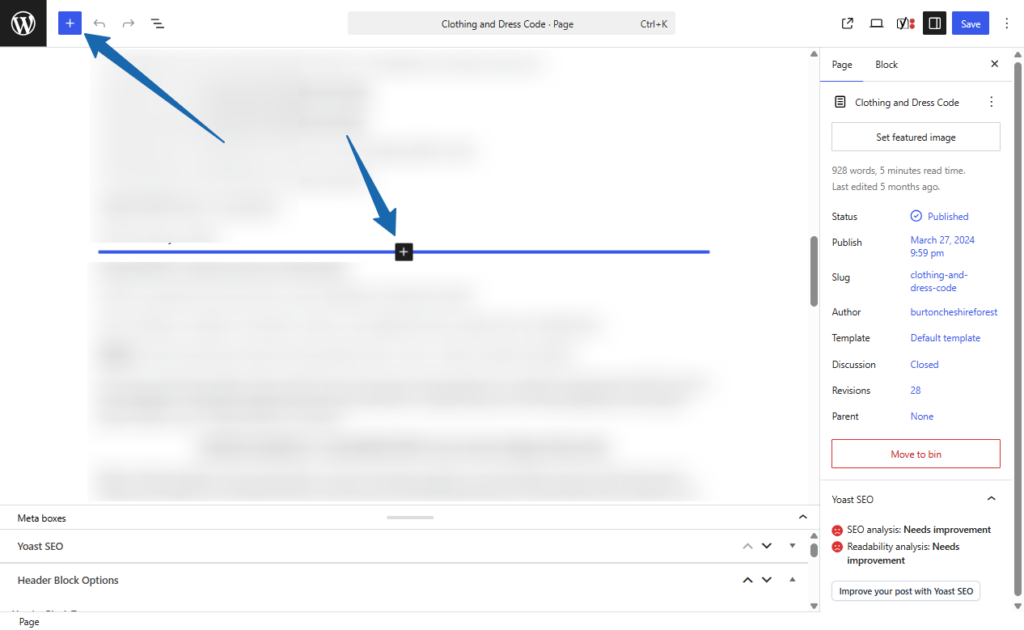
  2. Hover between existing blocks until a blue line and + icon appears OR select the + icon at the top left of the edit page
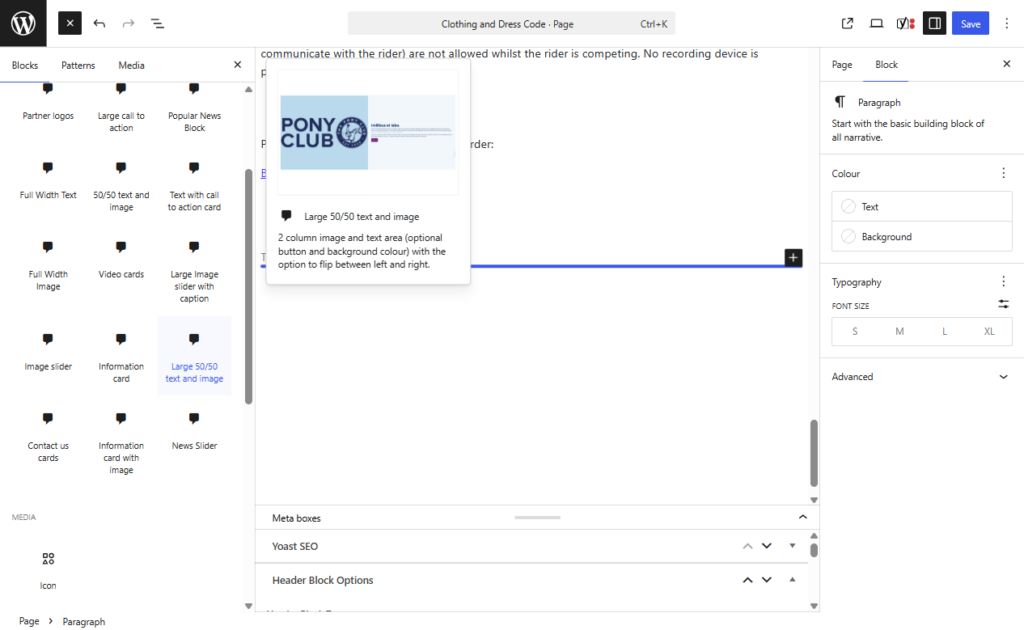
  3. Select the + icon.
  4. Choose the block you’d like to add.
  5. Complete the block settings.
  6. Save or update the page.

Before adding lots of content, think about how you’d like the finished page to look. Pages with a mixture of text and images are often more engaging than pages containing only text.

Updated on 5 August 2026

Share This Article :

  • Facebook
  • X
  • LinkedIn
  • Pinterest
Accessing your Branch Site WordPressUpdating Homepage Content

Copyright © 2026 The Pony Club Registered Charity No: 1050146 | Incorporated as a Company Limited By Guarantee Registered in England No: 3072475