
Your homepage is the digital front door to your Branch. It is often the first page members, parents, volunteers and prospective members will visit, making it one of the most important areas of your branch website.
Keeping your homepage up to date helps visitors quickly find the information they need and ensures your Branch is presenting an active and welcoming image. Whether you’re promoting upcoming rallies, highlighting useful information or sharing important notices, regular homepage updates can significantly improve the experience for visitors and prospective members!
The homepage can be updated directly within WordPress, either through the Dashboard or by using the Edit Page option whilst viewing the site. The page is built using a series of content blocks, allowing you to easily update individual sections without affecting the rest of the page.
Access and edit your Branch homepage
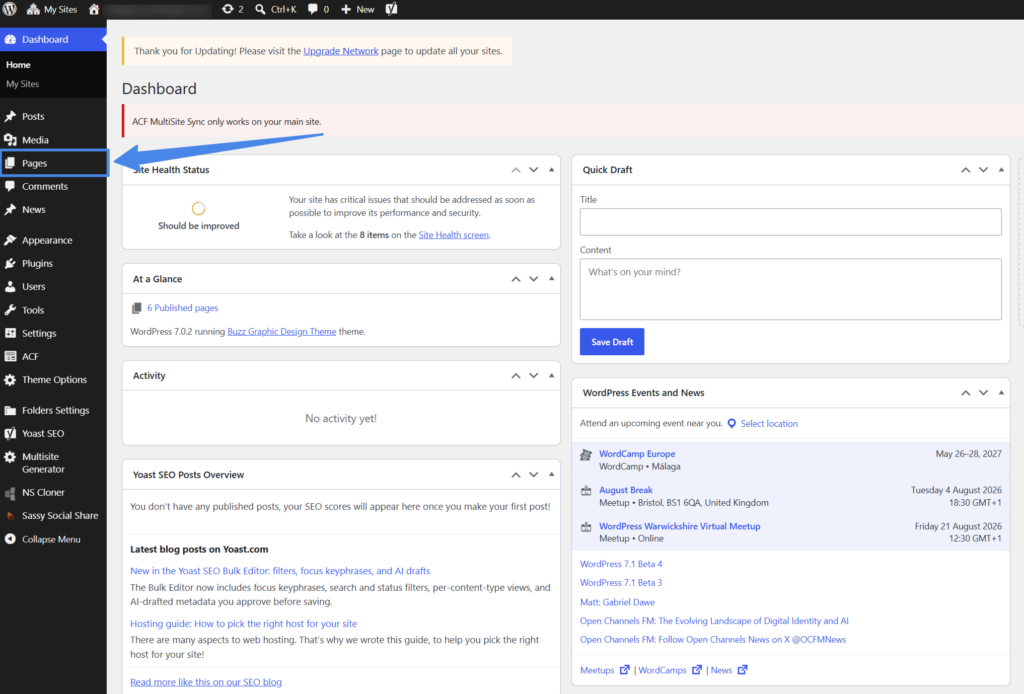
To edit your front page, log into WordPress. Here you will see the Dashboard, on the left menu select ‘Pages’.
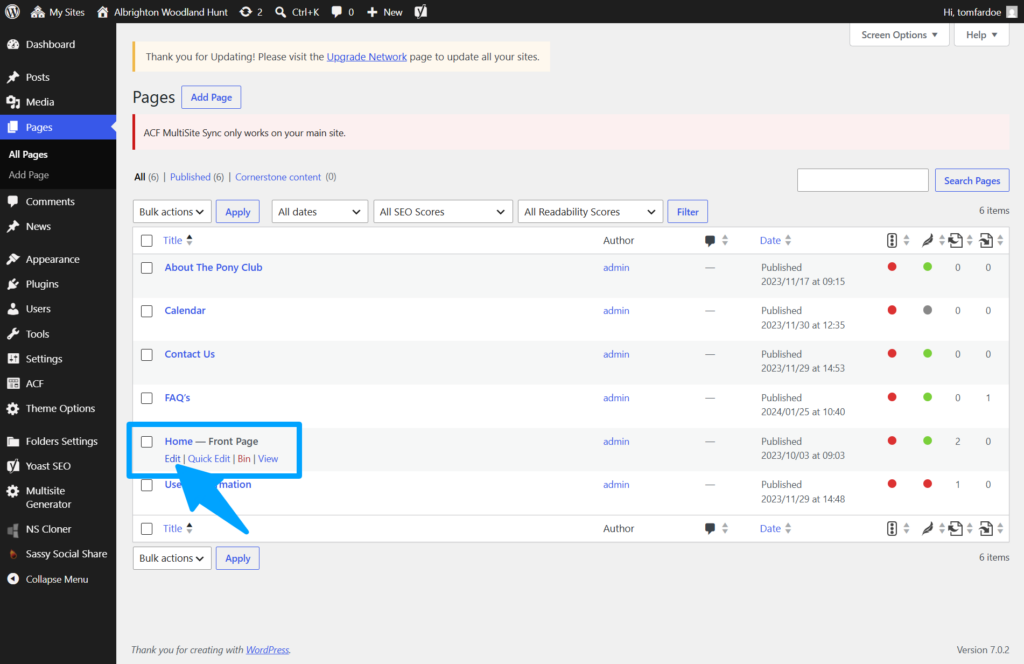
From here you will see a list of all your created pages, you can Edit, Bin or View pages from here.
To edit your main front page look for ‘Home – Front Page’ and select ‘Edit’
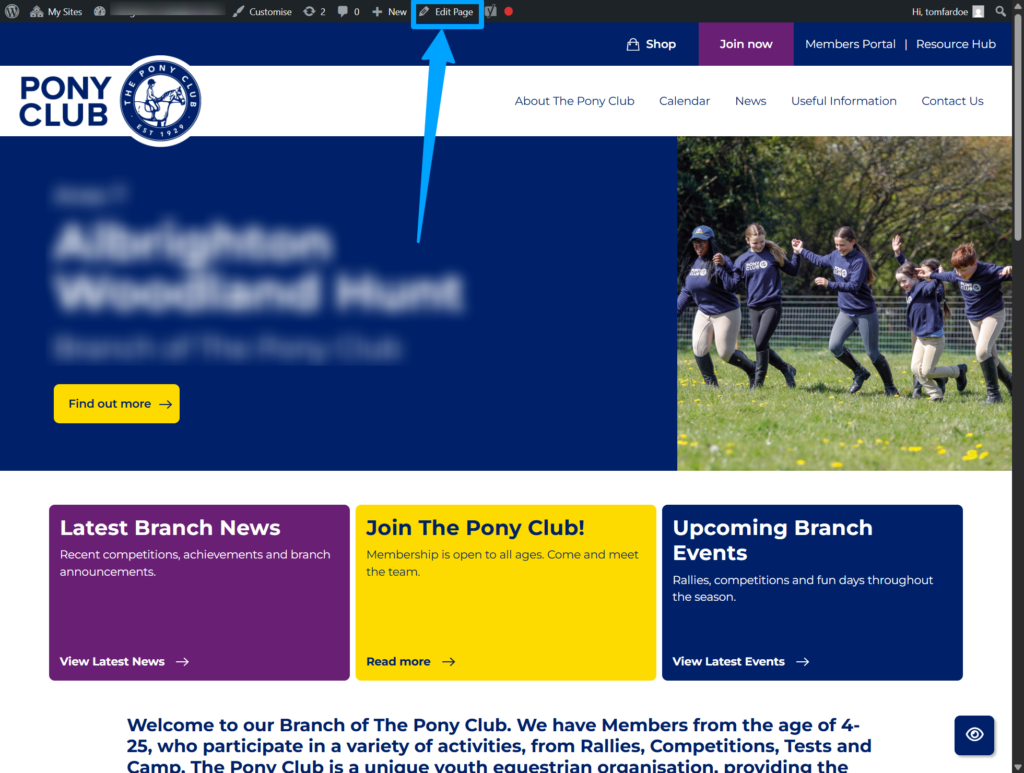
If you are already logged into WordPress you can also access the page editor from the front end, the WordPress bar will appear at the top of any page – simply select the ‘Edit’ button!
Updating Homepage Intro Text
The Homepage Introduction Text is one of the first pieces of information visitors will read when they arrive on your Branch website. It sits within the homepage content area and provides a brief introduction to your Branch, helping visitors understand who you are, what you offer and where to find further information.
A well-written introduction can help new members, parents and volunteers quickly understand what your Branch does, the age demographic of your membership base and what sports & activities you currently offer!
What Should the Introduction Include?
Your homepage introduction should provide a brief overview of your Branch and help visitors understand what they can expect.
Consider including:
- A short welcome message
- Information about your Branch location or area
- The types of activities you offer
- Membership opportunities
- A brief summary of your Branch community
Most visitors will scan the homepage rather than reading large blocks of text. Aim for two to four short paragraphs rather than lengthy descriptions. It is also a good idea to ensure the information in this section is timeless, so it does not quickly appear outdated.
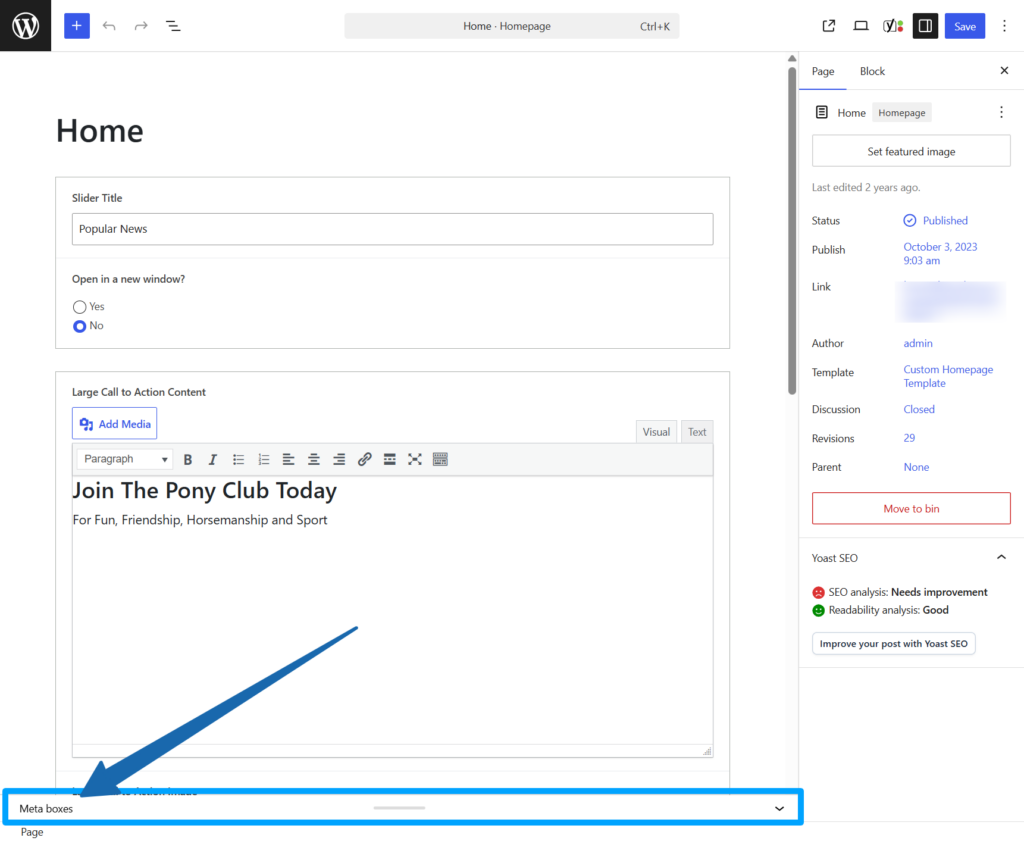
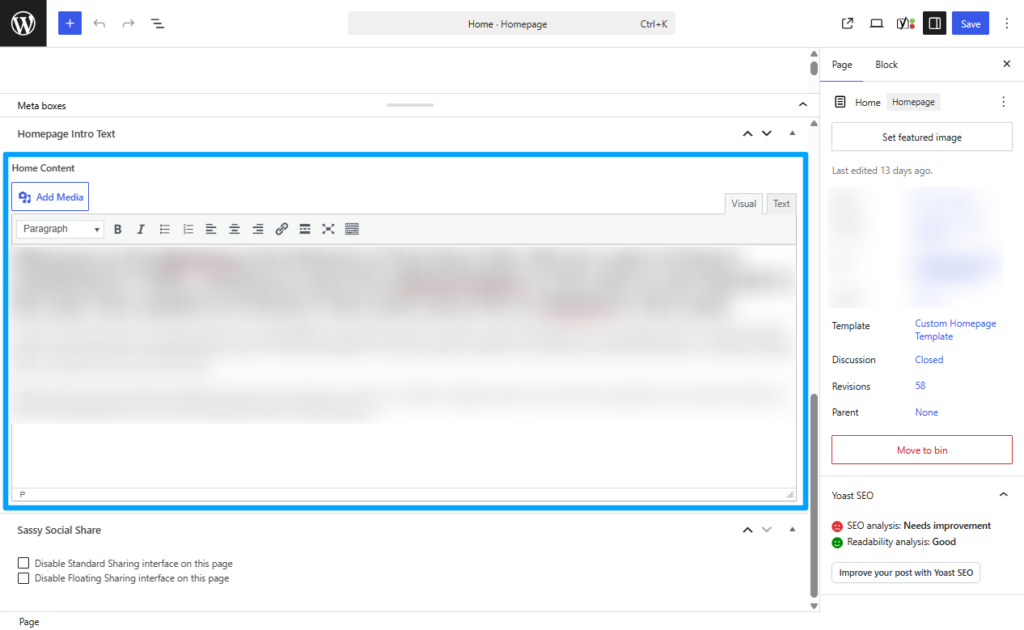
In order to access and edit the Intro text you will need to navigate to the section called ‘Meta Boxes’ – and look for the large text box under ‘Homepage Intro Text’
Update your home page image
The homepage banner image is one of the most prominent visual elements on your Branch website. A high-quality image can immediately showcase your Branch activities, create a positive first impression and encourage visitors to explore the site further.
The homepage image should reflect your Branch, be visually engaging and remain relevant throughout the year. Many Branches choose to update their homepage image seasonally, following major events or when new photography becomes available.
Use High Quality Photography
Choose clear, sharp images that represent your Branch well.
Good examples include:
- Rally activities
- Camp photographs
- Competition images
- Mounted games
- Team photographs
- Training sessions
Avoid:
- Blurry photographs
- Poorly cropped images
- Images with distracting backgrounds
- Screenshots or low-resolution images
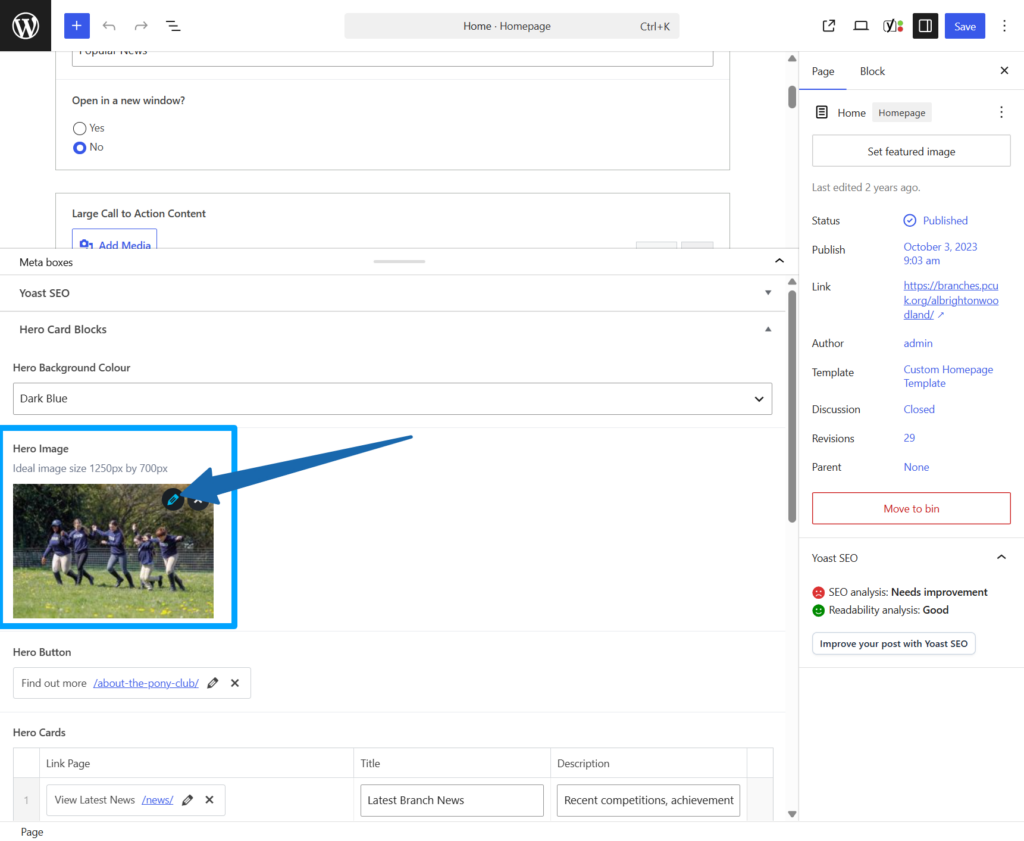
In order to access and edit the header image you will need to navigate to the section called ‘Meta Boxes’ – this is simply a settings panel to control and amend many different elements on the homepage!
Within the Meta Boxes section you will see the current ‘Hero Image’, to change this simply select the Edit icon
Managing Hero Cards
Hero Cards are one of the most prominent features on your homepage. They are the three cards that sit directly beneath the main homepage banner and are designed to help visitors quickly find the most important information on your website.
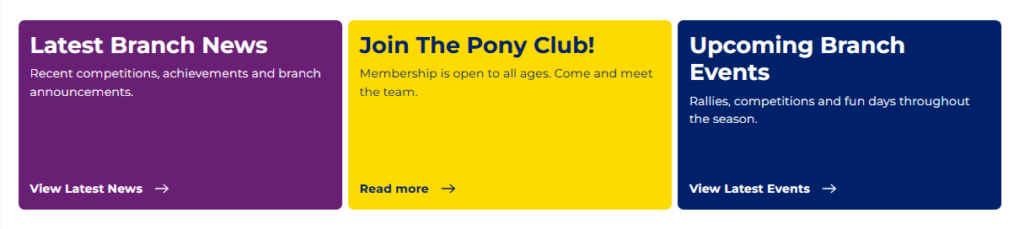
Each Hero Card can be fully customised, allowing you to update the title, description and destination link. They can direct users to another page on your Branch website or an external resource where appropriate.
Because Hero Cards are highly visible, they should be reviewed regularly and updated to reflect current Branch priorities.
Choosing Effective Hero Card Content
A good Hero Card should immediately answer the question:
“What is most useful to someone visiting this site right now?”
Examples include:
Member Information
Direct visitors to information about joining your Branch.
Upcoming Events
Promote rallies, camps, competitions or training events.
Volunteering
Highlight volunteer opportunities and ways to get involved.
News and Updates
Help visitors quickly access recent Branch announcements.
In order to access and edit the Hero Cards you will again need to navigate to the section called ‘Meta Boxes’
Within the Meta Box section, there will be a table under ‘Hero Cards’ – this will allow you to change the ‘Link Page’ (where the card links to), the ‘Title’ and the ‘Description.
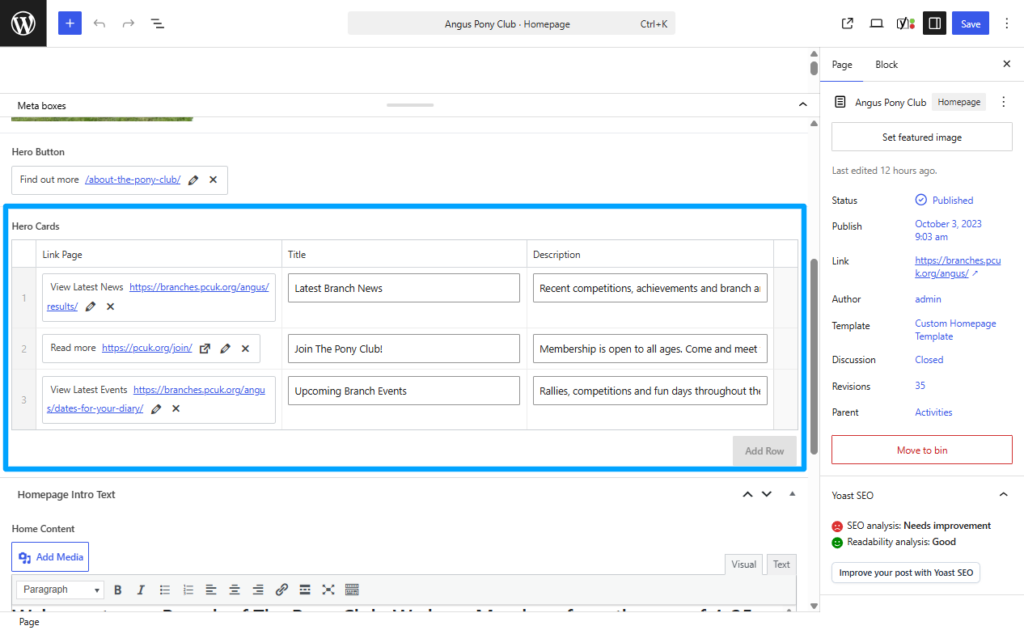
It is strongly recommended that if you change the destination link, you also change the description accordingly to avoid any confusing user journeys.


