
Skip to content
  • Home
  • Branches
  • Centre Proprietors
  • Centre Coordinators
  • Area Reps
  • User Guides
  • Events
  • Support

PELHAM Basics

4
  • Accessing PELHAM
  • Adding a Browser Profile
  • Accessing PELHAM – Area Representatives
  • Accessing Pelham on Mobile & Tablet

Branches

3
  • Accessing PELHAM – Branches
  • Updating Branch Committees
  • Member Approvals

Centres

2
  • Accessing PELHAM – Centres
  • How to view Centre Coaches

Branch Website Management

6
  • Accessing your Branch Site WordPress
  • Building Pages with Content Blocks
  • Updating Homepage Content
  • Managing Website Navigation Bars
  • Creating and Managing News Articles
  • Managing Page Headers

Coaches and Volunteers

7
  • Coach Types
  • The Coach Agreement
  • Coach Certifications
  • Assessors
  • Adding Coach Qualifications
  • How to Deactivate a Coach Qualification
  • How to add CPD Activities

Events

7
  • Reporting on Events in PELHAM
  • Online Booking Systems
  • My Riding Life – The Pony Club
  • Horse Events – The Pony Club
  • Horse Monkey – The Pony Club
  • Entrymaster – The Pony Club
  • Manually Creating New Events

Achievements

3
  • Achievements – Basics
  • Deactivating Achievments
  • Achievements – Bulk Upload

Contacts

5
  • What is a Contact?
  • How to Create a Contact
  • Contacts – Membership Tab
  • Update Contact Email Address
  • Sending Emails from PELHAM

Views & Reporting

3
  • Searching and Views
  • Exporting Data from PELHAM
  • Creating a new view
View Categories
  • Home
  • Pelham Support Guides
  • PELHAM Basics
  • Adding a Browser Profile

Adding a Browser Profile

0:00 / 1:57
  • View as Markdown Open this page as plain Markdown (opens in a new tab)
  • Open in ChatGPT Ask questions about this page (opens in a new tab)
  • Open in Claude Ask questions about this page (opens in a new tab)
  • Open in Google AI Studio Ask questions about this page (Google account required) (opens in a new tab)

To separate your Pony Club accounts, we suggest creating a separate profile for each address.

Google Chrome

  • Open Google Chrome.
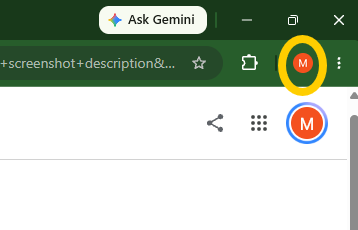
  • Click your Profile icon in the top-right corner of the browser window (to the left of the three-dots menu).
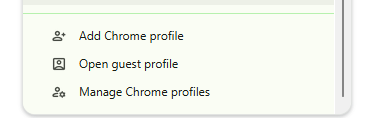
  • At the bottom of the dropdown menu, click Add (or Add Chrome profile).
  • In the pop-up window, select Continue without an account (unless you specifically want to sync this profile to a separate Google account).
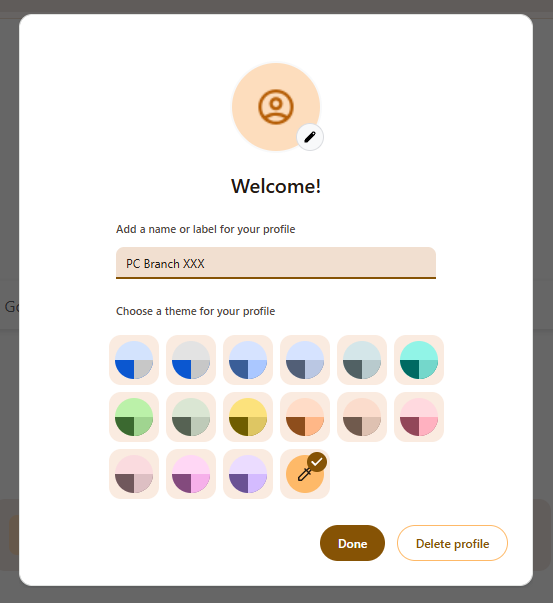
  • Enter a descriptive name (e.g., PC Branch DC), choose a colour theme, and click Done.
  • A new Chrome window will open. Navigate to https://pelham.pcuk.org , click on the link to the pelham section and sign in with your specific Microsoft account.

Microsoft Edge

  • Open Microsoft Edge.
  • Click your Profile icon in the top-right corner of the browser window
  • Click Set up new personal profile (or Add profile).
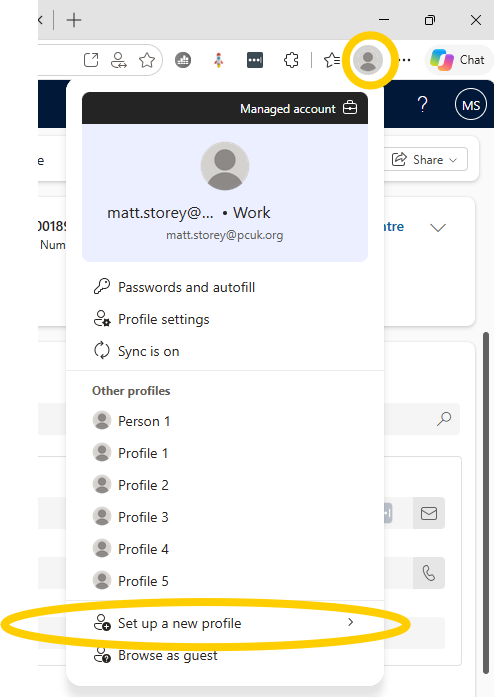
  • Select Work / School from the menu.
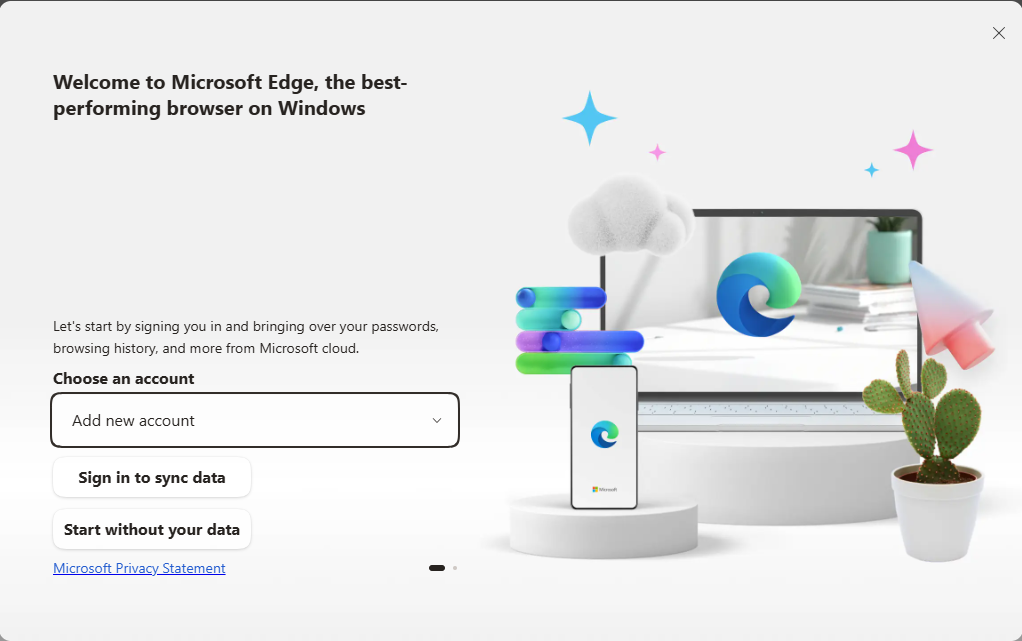
  • A new window will open asking you to sign in to sync data.
      • To link the browser directly to your Microsoft account: Click Sign in to sync data and enter your Microsoft email and password.
      • To keep the browser local: Click Start without your data, confirm your preferences, and then sign into Microsoft 365 directly on the webpage.
  • (Optional) To rename the profile, click the Profile icon > Settings (gear icon) > Edit next to your profile name.

Apple Safari (macOS)

Note: Profiles in Safari require macOS Sonoma (14.0) or later.

  • Open Safari.
  • In the top macOS menu bar, click Safari > Settings (or press Command + ,)
  • Select the Profiles tab at the top of the Settings window.
  • Click Start Using Profiles (if this is your first additional profile) or click the + button in the bottom-left corner of the list
  • Give your profile a Name (e.g., PC Branch DC), choose a Symbol and Colour, and choose what happens when you open new windows or tabs.
  • Close the Settings window. To switch to your new profile, click the Profile dropdown button in the top-left corner of the Safari toolbar (next to the sidebar icon) and select your new profile.
Updated on 19 November 2026

Share This Article :

  • Facebook
  • X
  • LinkedIn
  • Pinterest
Accessing PELHAMAccessing PELHAM – Area Representatives

Copyright © 2026 The Pony Club Registered Charity No: 1050146 | Incorporated as a Company Limited By Guarantee Registered in England No: 3072475