
Setting up your web browser
We would recommend that you use Google Chrome when using PELHAM, ideally using a different ‘profile’ just for your Pony Club activities to keep it separate from your other personal or business accounts. To set up a new profile in Chrome, please follow the instructions here or view the video guide below.
Logging into PELHAM
To access PELHAM for Branches visit the project site at https://pelham.pcuk.org select the Area Reps dashboard, and select the associated login button.
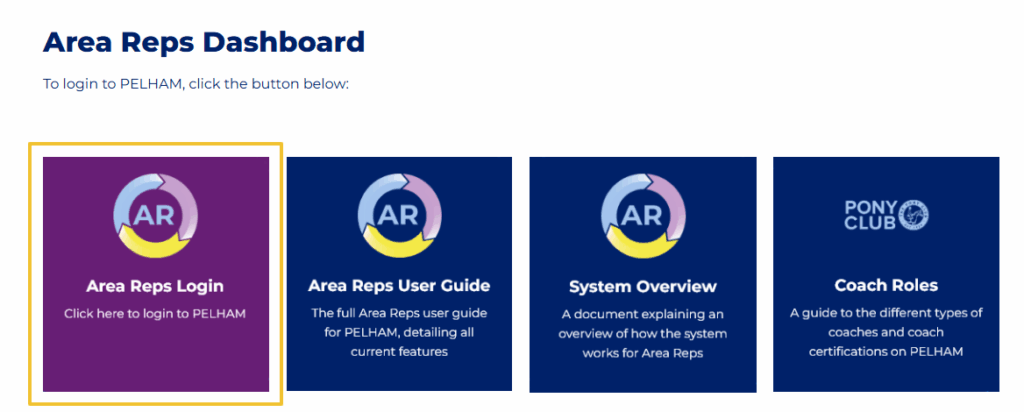
You will then need to enter your Branch email address and the password given to you by the Pelham Project Team.

Area Landing Page
Once you are logged in as an Area Rep you will arrive on the ‘Active Areas’ view, this shows all Areas. If you were to select an area other than your own, you will see their General page but no further information.

Area Summary Page
When you select an Area from the Active Area view you will be taken to the Area Summary page, here you will find the following sections:
- General
- Branches
- Centres
- Coaches & Volunteers
- Notes
- Related
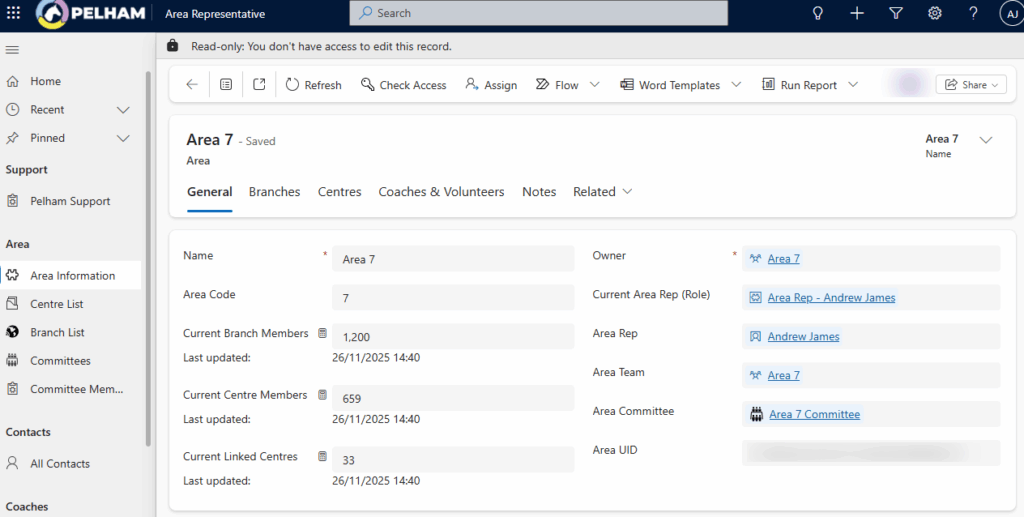
Within these individual pages different views are available, for Example within ‘Branches’ you can view ‘Active Branches’ but also select a view to display branches alongside DC/Branch/Area
Note: This message indicates that the information being viewed is in DISPLAY only mode

If you click through to a specific Branch this takes you to the Branch Summary Page where you can search Branch members and achievements. In this view (below) you can change from viewing the ‘Current Branch Members’ to ‘Members expiring within the next 3 months’ or other useful views, including “memberships in progress (unpaid) by clicking the arrow next to the heading. The same can be done with Centres!


