• Home
  • Branches
    • Branches User Guide
  • Centre Proprietors
    • Centre User Guides
  • Centre Coordinators
    • Centre Coordinators User Guides
  • Area Reps
    • Area Reps User Guide
  • Training Documents
  • Events
  • Support

PELHAM Basics

5
  • Accessing PELHAM
  • Accessing PELHAM – Branches
  • Accessing PELHAM – Centres
  • Accessing PELHAM – Area Representatives
  • Accessing Pelham on Mobile & Tablet

Achievements

2
  • Achievements – Basics
  • Achievements – Bulk Upload

Contacts

4
  • What is a Contact?
  • Contacts – Membership Tab
  • Member Approvals
  • Sending Emails from PELHAM

Coaches and Volunteers

2
  • The Coach Agreement
  • CPD & PELHAM Explained

Events

1
  • Adding a new event

Views & Reporting

3
  • Searching and Views
  • Exporting Data from PELHAM
  • Creating a new view
View Categories
  • Home
  • Pelham Support Guides
  • Achievements
  • Achievements – Basics

Achievements – Basics

How to add new Achievements

1. From the ‘Achievements’ tab click ‘+New Achievement History’ as highlighted below:
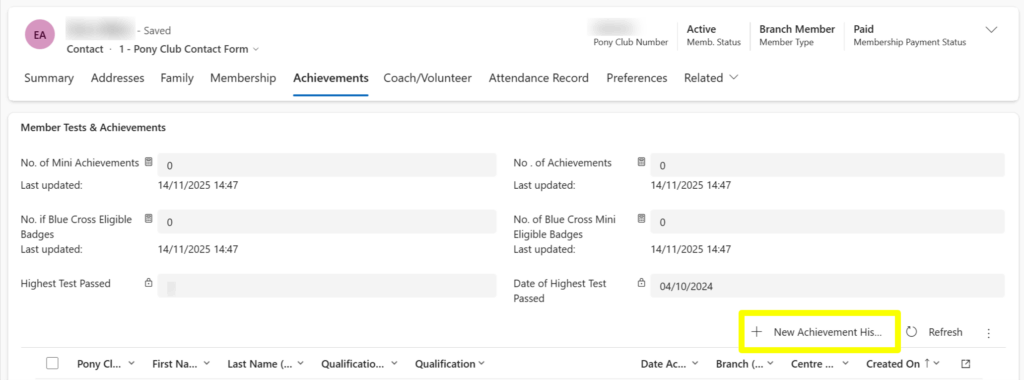
2. You will then be shown the ‘New Achievement History’ screen where you can add the achievement.

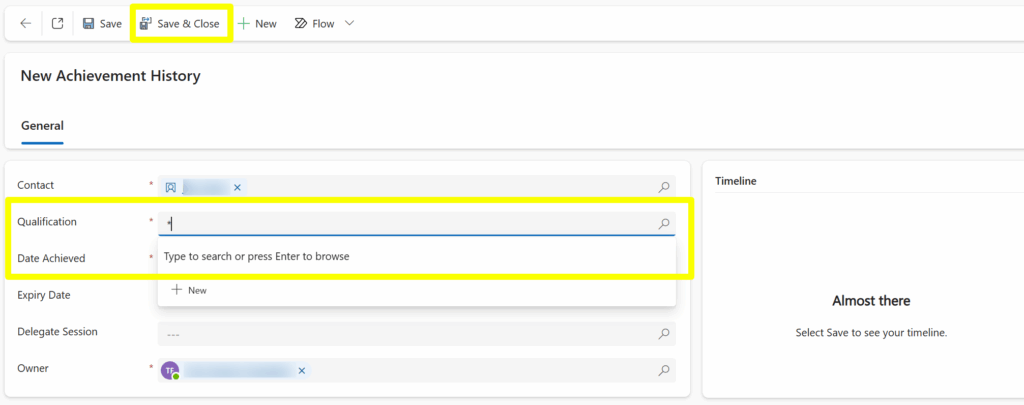
3. Fill in the Qualification and Date Achieved as highlighted below:

4. Finally Save & Close this screen.

How to deactivate an achievement 

Useful if achievements have been added by mistake!

1. Firstly, you need to find the achievement you wish to remove from a contact:

2. Double click on the achievement you wish to remove.

3. The ‘New Achievement History’ screen will load with the achievement you have selected.

4. Next click ‘deactivate’ in the top of the screen as highlighted below:

5. Finally select ‘Deactivate’ and the achievement will disappear from the contacts record, if you wish to add the correct achievement you can now do so using the ‘+ New Achievement History’:

Multi Achievement Deactivation

Hint! – this can be done in ‘bulk’ if multiple achievements need to be deactivated together, by selecting the checkboxes to the left of the required achievements and then selecting deactivate, as shown below:

Updated on 14 November 2025

What are your Feelings

Share This Article :

  • Facebook
  • X
  • LinkedIn
  • Pinterest

Copyright © 2025 The Pony Club Registered Charity No: 1050146 | Incorporated as a Company Limited By Guarantee Registered in England No: 3072475