
Automated Emails
Automated emails are sent from PELHAM to contacts depending on change in status. A summary of these is below:
New Branch Members
If the member is brand new to the branch, and not subject to the transfer process, then the membership will be in “pending” status until the branch DC has approved it. They will also receive an email that confirms payment alongside Gift Aid status.
An email will be sent to the DC notifying them that a new member has been added to their Branch.
An email will be sent to the parent/guardian notifying them that their application is in progress.
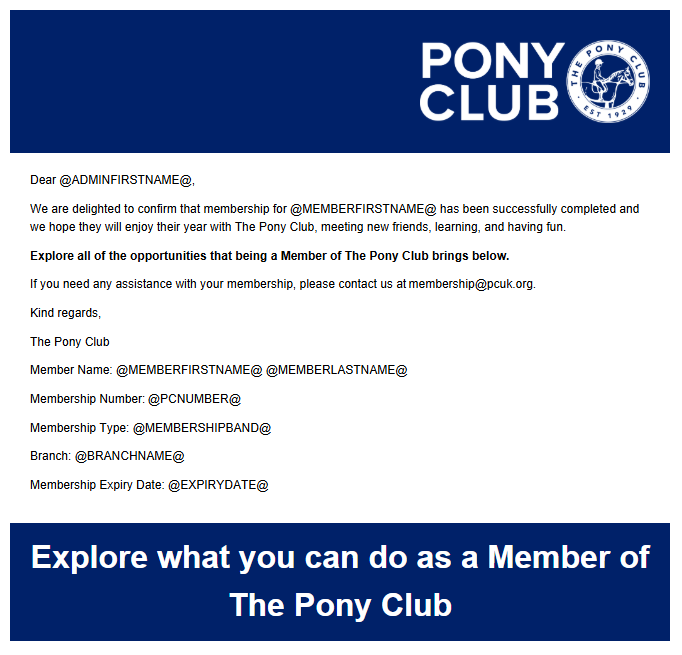
Once the Branch DC approves the membership in Pelham, then the membership will be set to Active and an email will be sent to the parent/guarding confirming the membership, advising membership number and expiry date.
NOTE: If a DC chooses NOT to approve this membership then the AR and office need to be notified ASAP to determine next steps, including finding an alternative branch and notifying the member.
Renewing Members
Members who’s Membership is up for renewal will receive a set of email reminders leading up to the expiry date:
4 Weeks Prior to expiry
2 Weeks Prior to expiry
Membership Expired
3 Days after expiry
The parent/guardian (Member Administrator) or member if acting on their own behalf, will receive an email for each member confirming the application has been successfully processed and advise the membership number and expiry date
How to send ad hoc group emails
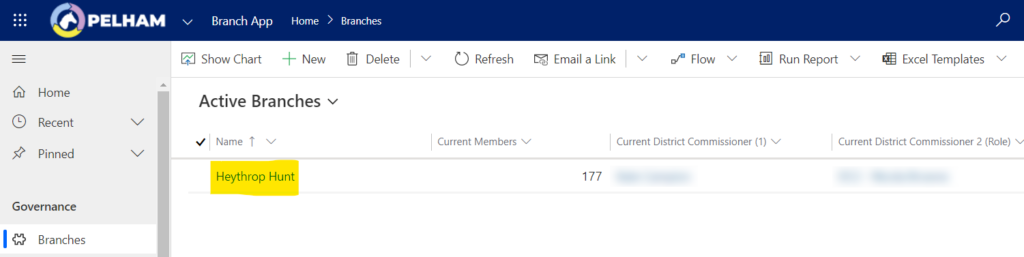
From the landing page, you will need to select your Branch, for example Heythrop:
You will then be taken to the Branch Summary Page which is where you select the members/contacts you wish to email:
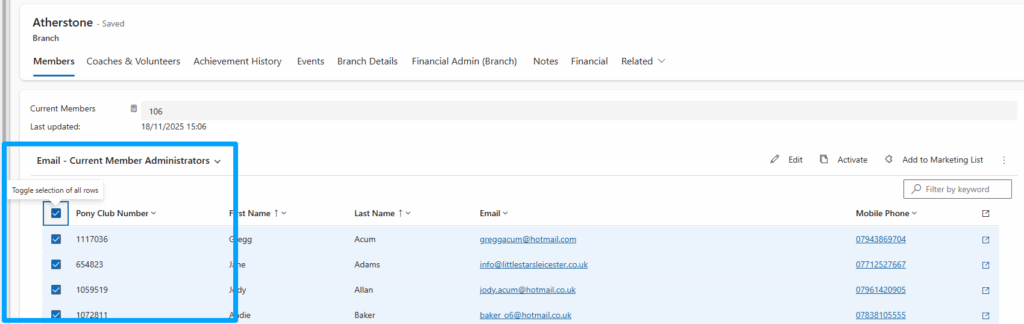
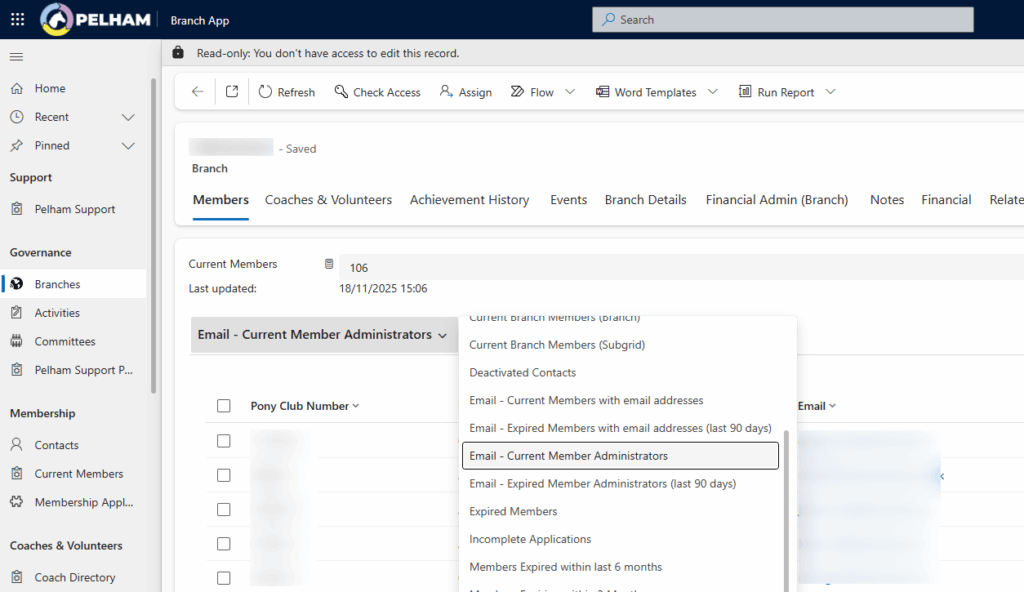
Then select the group you wish to email by selecting the view “Email – current Member administrators” and select the members you want to email by clicking the “tick” icon next to the Pony Club Number as highlighted above. You can use the very top “tick” icon, which will select the whole list, or you can select them individually.
Next you need to click on 3 dots on right side and select ‘Send Group Email’:
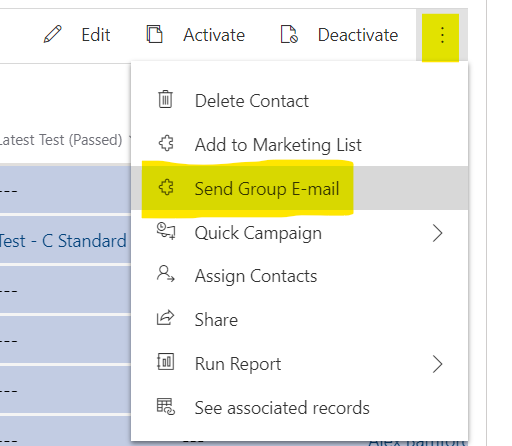
You will notice all emails are added to the BCC list.
Add additional contacts to the email
If you want to add more contacts, select the magnifying glass next to the BBC list.
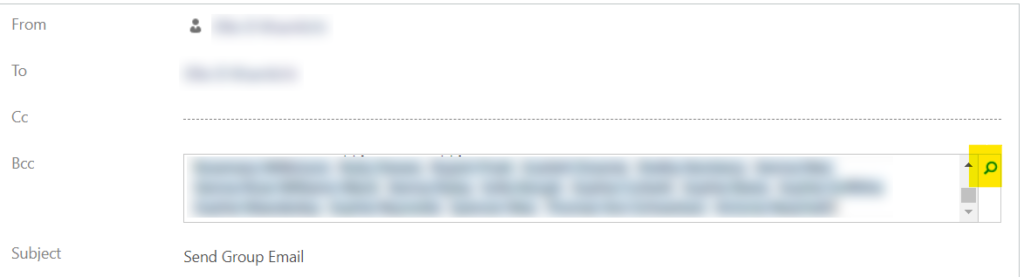

Scroll down to ‘Look Up More Records’
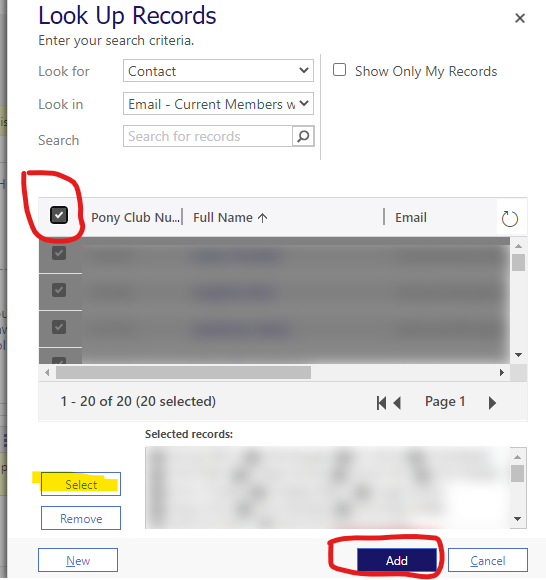
Click on the ‘Look in’ dropdown list and the usual lists will appear; scroll down to ‘Email Current members with email addresses’ (or whichever email list you require)
Tick to select all the contacts, press Select and ADD to add to the list – They are then added to the BCC list and you are able to send the email.
Finally press send and you can find the recently sent/created emails in the ‘Activities’ tab:


