
How to Create an Event:
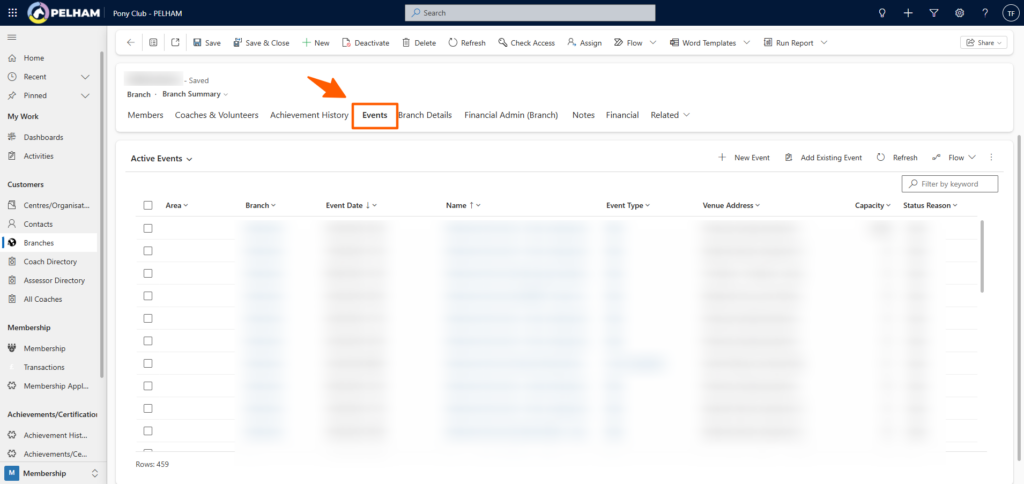
An event can be manually created on PELHAM by navigating to the Branch, and selecting the Events tab
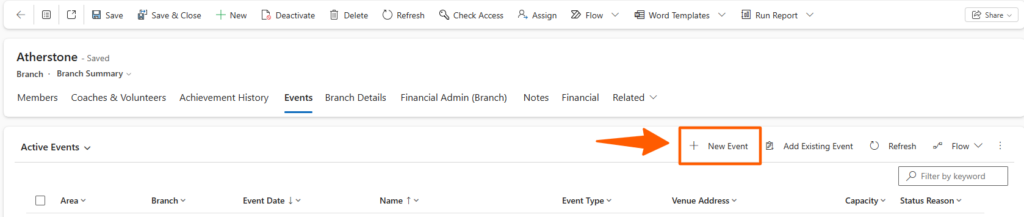
From the Events tab, select the ‘New Event’ button
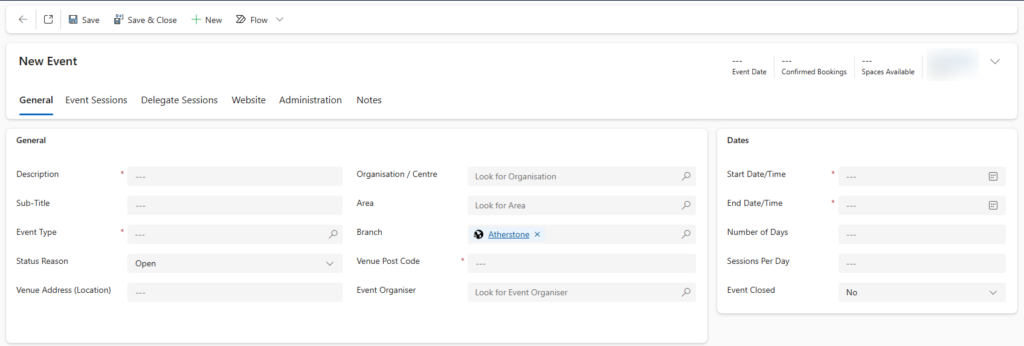
Now fill in all the required information fields for the new event – these are:
- Description
- Event Type
- Status
- Venue Post Code
- Start Date/Time
- End Date/Time
Ensure you click Save or Save & Close
How to Create a Event Session
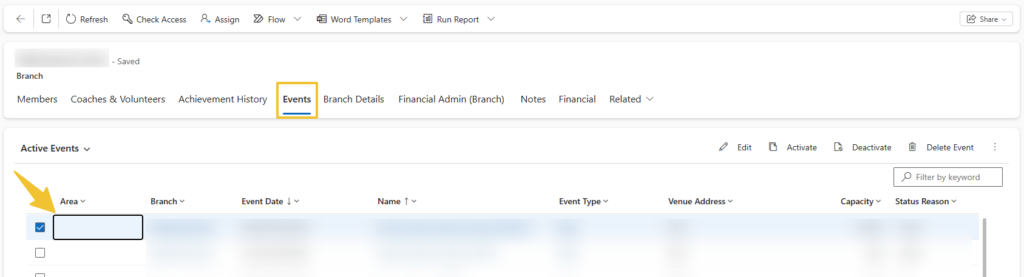
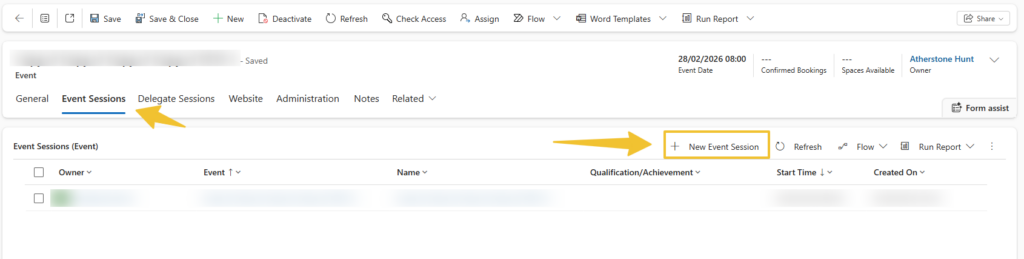
Once an event has been created, navigate back to the Branch > Event tab and select the newly created Event (Hint: Ensure you select Name column or the Empty space)
Select the Event Session tab then select the New Event Session button
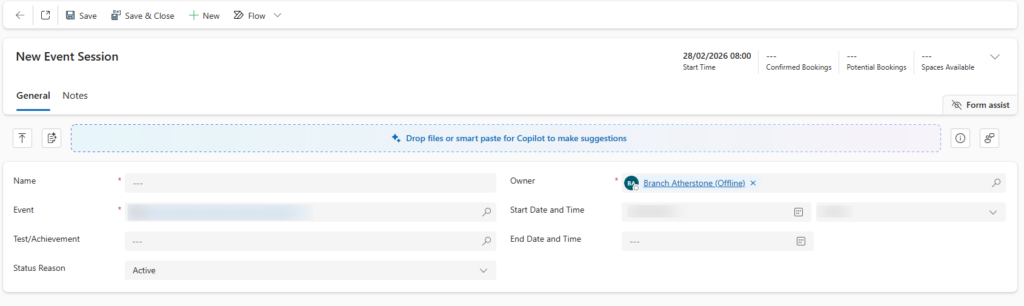
Next, enter all the required information into the Event Session page, the required fields are:
- Name
- Owner
- Event (Automatically populated with Parent Event)
- Start Date & TIme
- End Date & Time
- Test/Achievement (Optional)
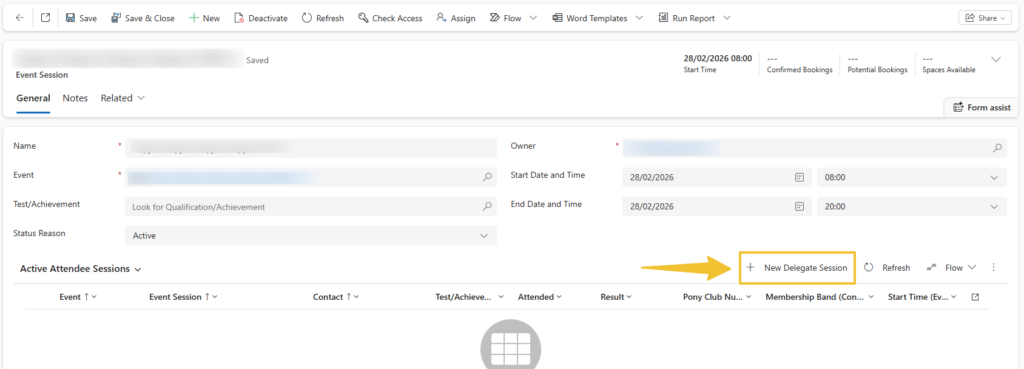
How to add an attendee to an event session (Delegate Session)
Navigate to the Event Session and select New Delegate Session
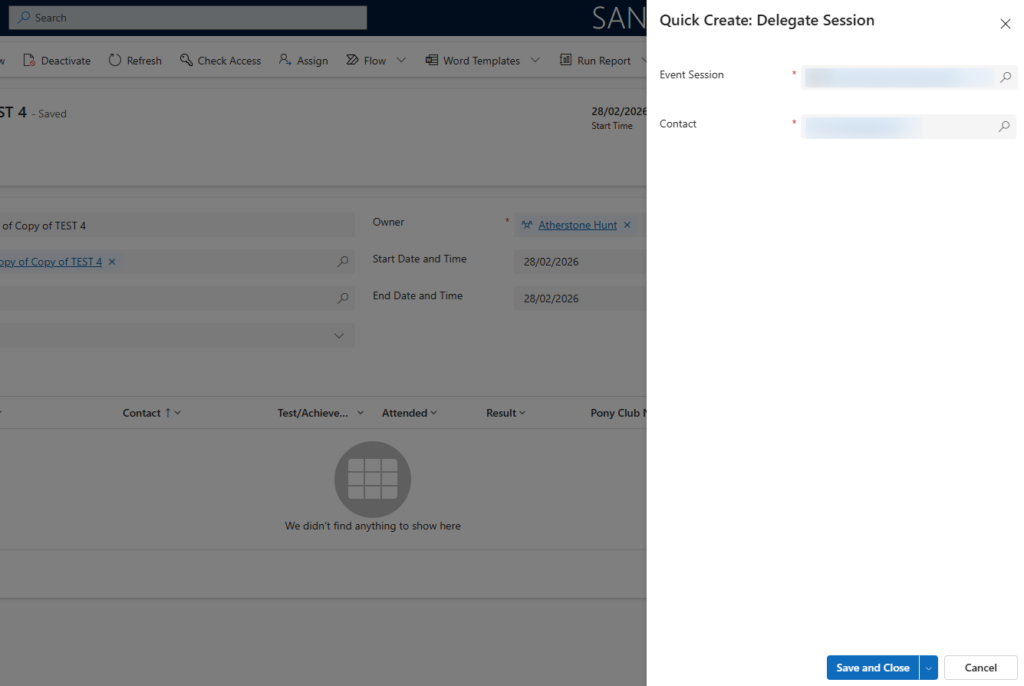
Select an Contact to add as an Attendee to the Event Session – and select Save and Close


