Setting up your web browser
We would recommend that you use Google Chrome when using PELHAM, ideally using a different ‘profile’ just for your Pony Club activities to keep it separate from your other personal or business accounts. To set up a new profile in Chrome, please follow the instructions here or view the video guide below.
Logging into PELHAM
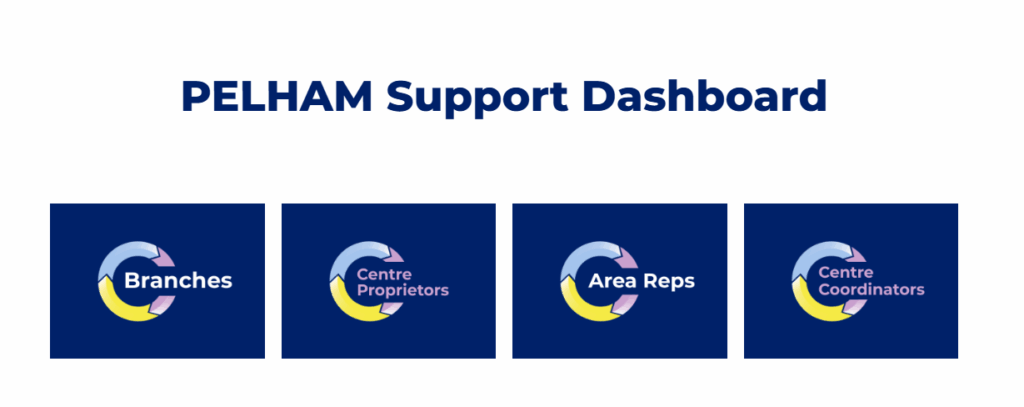
To access PELHAM for Centres (Coordinator or Proprietor) visit the project site at https://pelham.pcuk.org and find your appropriate dashboard, and select the associated login button.


You will need to enter your email address and the password given to you by the Pelham Project Team.

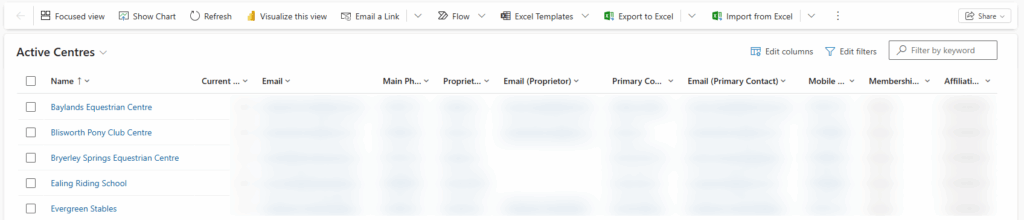
Once you are successfully logged in, you will land on the ‘Active Centres’ page and any associated centres will appear below.
Clicking on a Centre Name will take you to the Centre Summary Page
How to pin frequently used pages/views
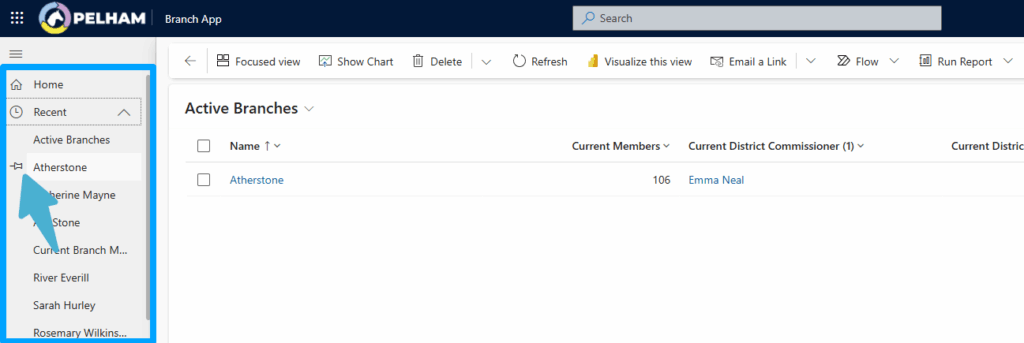
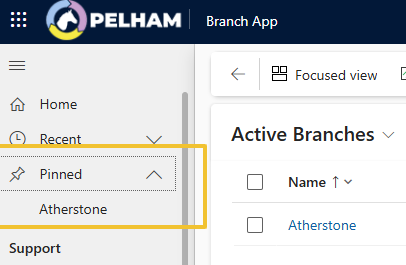
PELHAM allows you to pin recently used pages and views to the Recent section on the top left, this is useful for pages you commonly visit such as your Branch Summary Page!
To do this select the Pin symbol beside the relevant item, for example your Branch. This page will now always appear under your Pinned drop down list.
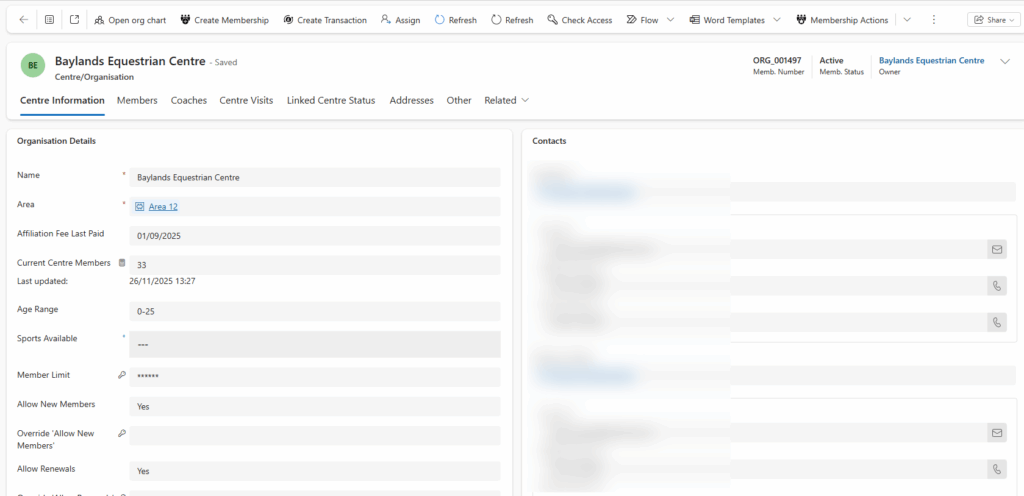
Centre Summary Page
The Centre Summary page contains the following sections:
- Centre Information – contains general details and current statistics of the center and any related contacts/entities
- Members – default view shows all ‘Current Centre Members’, other views can be selected to show other useful overviews such as ‘Members Expiring in 3 Months’#
- Coaches – shows all associated coaches (including expired)
- Centre Visits – shows all related Centre Coordinator visits, click into each visit for details and remarks
- Linked Centre Status
- Addresses