Setting up your web browser
We would recommend that you use Google Chrome when using PELHAM, ideally using a different ‘profile’ just for your Pony Club activities to keep it separate from your other personal or business accounts. To set up a new profile in Chrome, please follow the instructions here.
Logging in to PELHAM
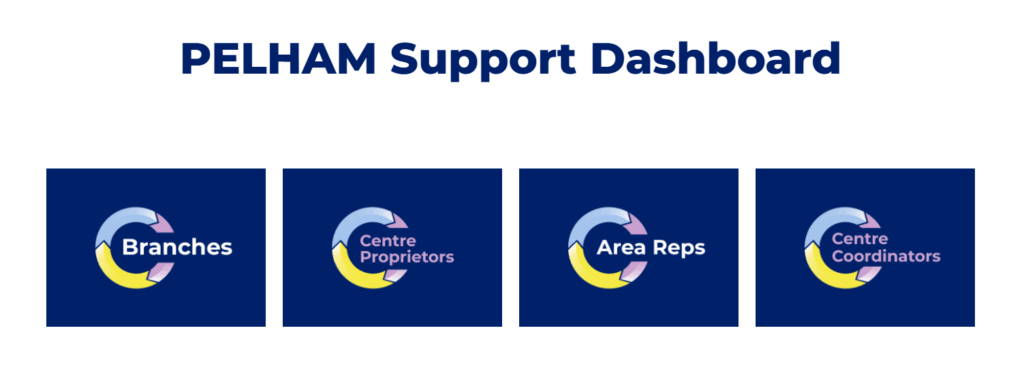
To access PELHAM visit the project site at https://pelham.pcuk.org and find your appropriate dashboard, and select the associated login button.
You will need to enter your email address and the password given to you by the Pelham Project Team.
Once you are logged in, you will land on the ‘Active Branches/Centers’ page and your Branch or Centres will appear below.
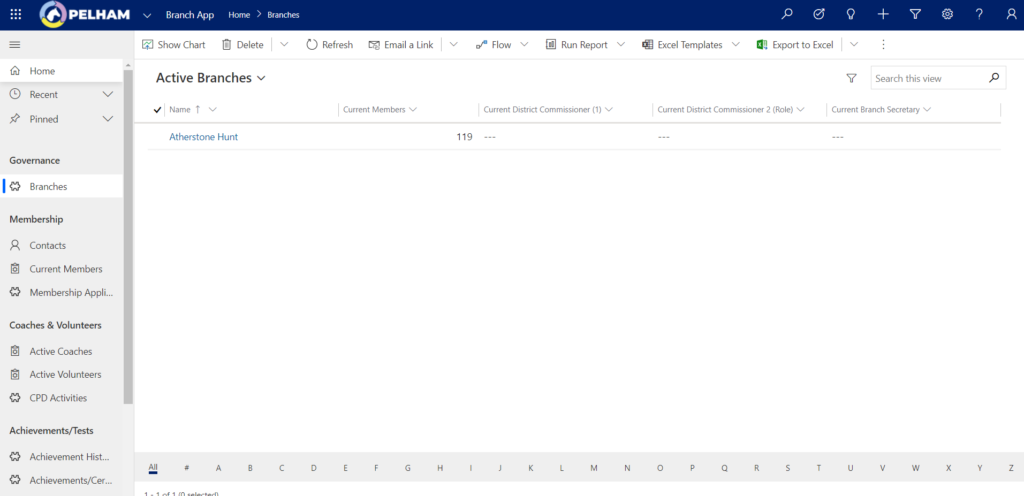
Clicking on an active branch or centre will take you to the associated summary page where you can find more information and update fields if required.
Changing your PELHAM password
If you would like to change your branch’s PELHAM password, please visit https://pelham.pcuk.org/resetpassword
You should do this anytime one of your PELHAM users leaves your branch committee, to ensure that they can no longer access the system.
Resetting your PELHAM password
If you have lost your PELHAM password and need to set a new one, please follow the steps below:
- Go to the PELHAM project site and click on the “Branches Login” button.
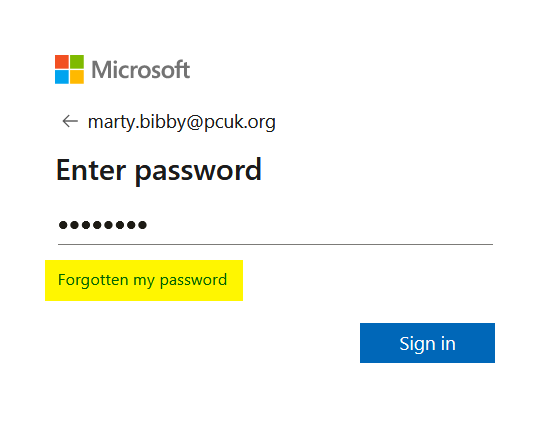
- On the Microsoft login page, click the “Forgotten my password” link:
- If you have previously set a recovery email address or phone number, a code will be sent there to enable you to set a new password. If you have not set any recovery details, the request will go to The Pony Club Central office who will contact you with a new password.