Skip to content
  • Home
  • Branches
    • Branches User Guide
  • Centre Proprietors
    • Centre User Guides
  • Centre Coordinators
    • Centre Coordinators User Guides
  • Area Reps
    • Area Reps User Guide
  • User Guides
  • Events
  • Support

PELHAM Basics

3
  • Accessing PELHAM
  • Accessing PELHAM – Area Representatives
  • Accessing Pelham on Mobile & Tablet

Centres

2
  • Accessing PELHAM – Centres
  • How to view Centre Coaches

Branches

3
  • Accessing PELHAM – Branches
  • Updating Branch Committees
  • Member Approvals

Coaches and Volunteers

7
  • Coach Types
  • The Coach Agreement
  • Coach Certifications
  • Assessors
  • Adding Coach Qualifications
  • How to Deactivate a Coach Qualification
  • How to add CPD Activities

Events

7
  • Reporting on Events in PELHAM
  • Online Booking Systems
  • My Riding Life – The Pony Club
  • Horse Events – The Pony Club
  • Horse Monkey – The Pony Club
  • Entrymaster – The Pony Club
  • Adding a new event

Achievements

3
  • Achievements – Basics
  • Deactivating Achievments
  • Achievements – Bulk Upload

Contacts

5
  • What is a Contact?
  • How to Create a Contact
  • Contacts – Membership Tab
  • Update Contact Email Address
  • Sending Emails from PELHAM

Views & Reporting

3
  • Searching and Views
  • Exporting Data from PELHAM
  • Creating a new view
View Categories
  • Home
  • Pelham Support Guides
  • Contacts
  • How to Create a Contact

How to Create a Contact

In PELHAM, each person has one Contact record. This single record represents the individual, no matter how many different roles or Membership statuses they hold. Keeping one record per person avoids duplication and ensures their details are always accurate in one place.

Some Contacts are created automatically. For example, when a parent or guardian sets up an account in the Membership Portal and adds their child, those Contact records are generated for you. Head Office may also create a Contact manually if a Membership is set up over the phone.

There may be times when you need to create a Contact yourself, such as adding a new Coach, Assessor, Committee Member or Volunteer. When that’s needed, follow the steps below to create a Contact:

Creating an Individual Contact

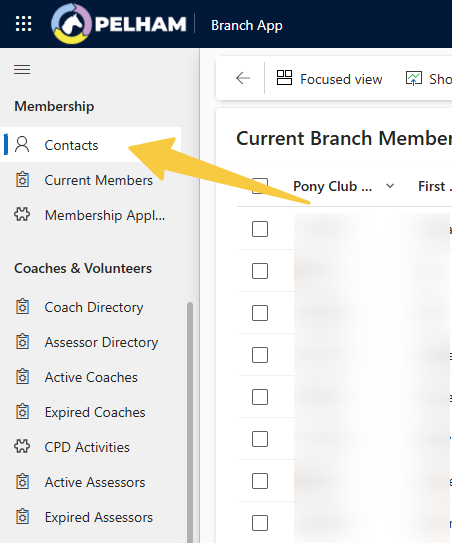
1 – Using the lefthand navigation menu find ‘Contacts’
2 – Select ‘New‘ from the top menu

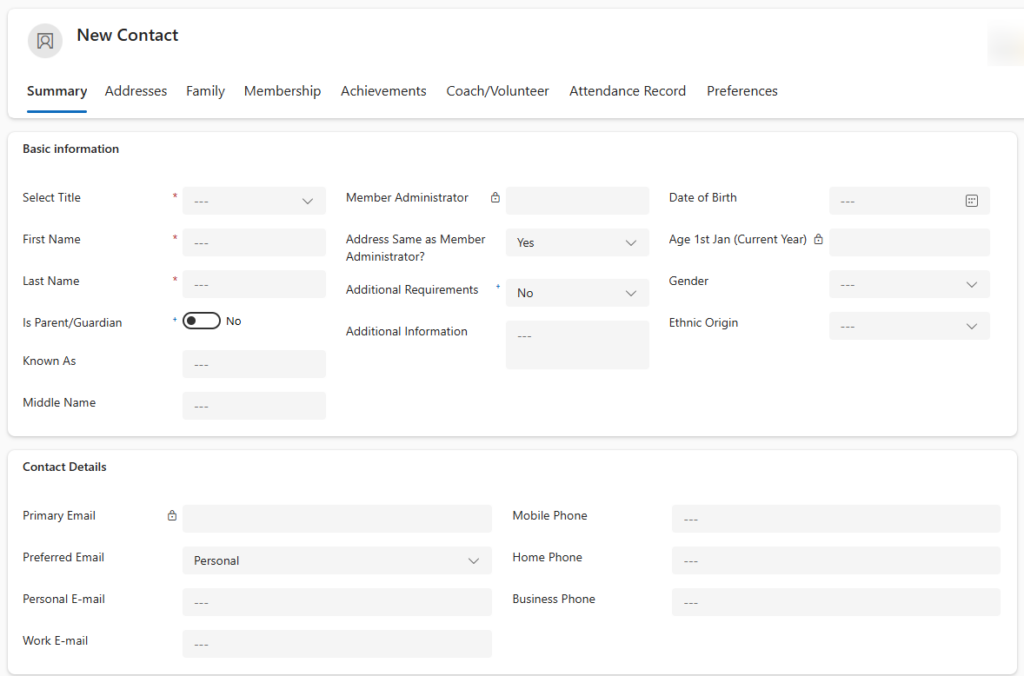
3 – Fill in Summary Information

Begin by filling in the required information fields within the Summary Tab, the below fields in Bold are Required, and Italicized are recommended

  • Title
  • First Name
  • Last Name
  • Personal Email
  • Date of Birth
  • Additional Information
  • Gender
  • Ethnic Origin

4 – Once the basic information has been filled in, select ‘Save’ from the top bar. This will create the contact record and automatically generate the unique Pony Club Number

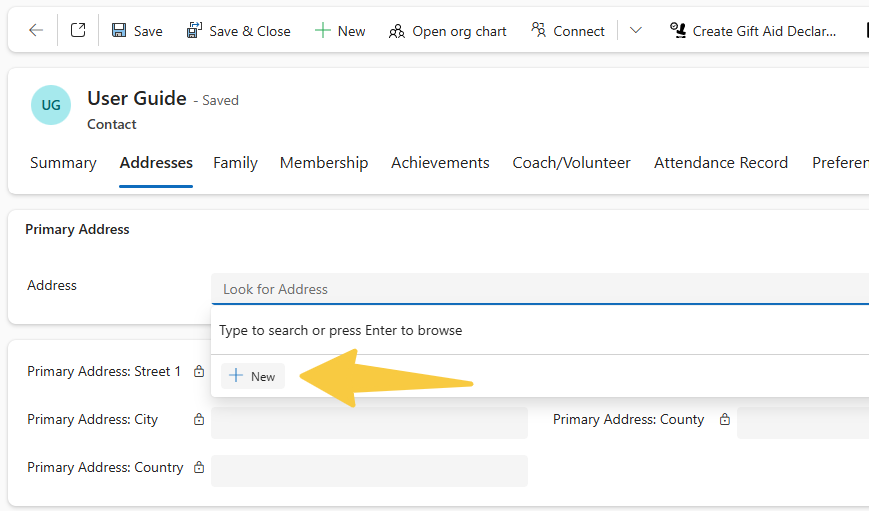
5 – It is also recommended to add an Address, especially if the Contact will be a Member at any point

To do this navigate to the Addresses tab, select the Address Field and click + New
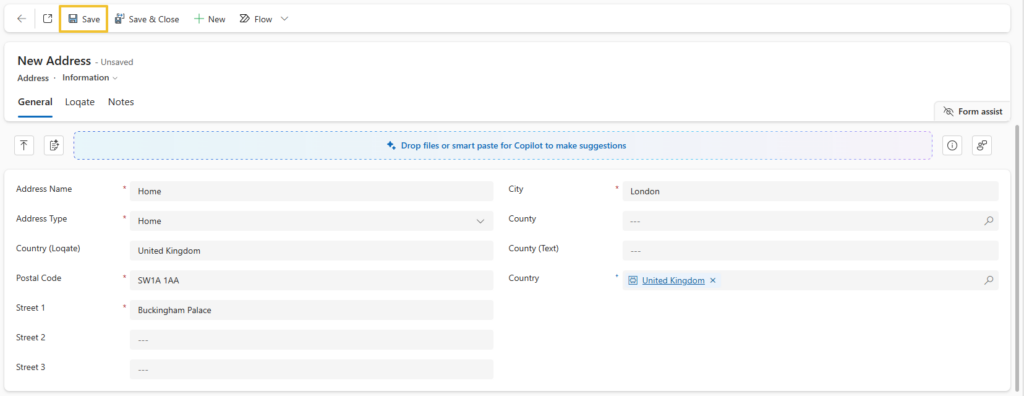
Start by typing in the Postal Code to autofill most of the required fields, once completed select Save & Close
Updated on 11 December 2025

What are your Feelings

Share This Article :

  • Facebook
  • X
  • LinkedIn
  • Pinterest
Update Contact Email Address

Copyright © 2025 The Pony Club Registered Charity No: 1050146 | Incorporated as a Company Limited By Guarantee Registered in England No: 3072475