Each Branch now has a committee which is tracked within Pelham, and where known, the DC, Secretary, Treasurer, Safeguarding and H&S officers should be added.
How to view your Branch Committee:
There are two ways to easily access a Branch Comittee:
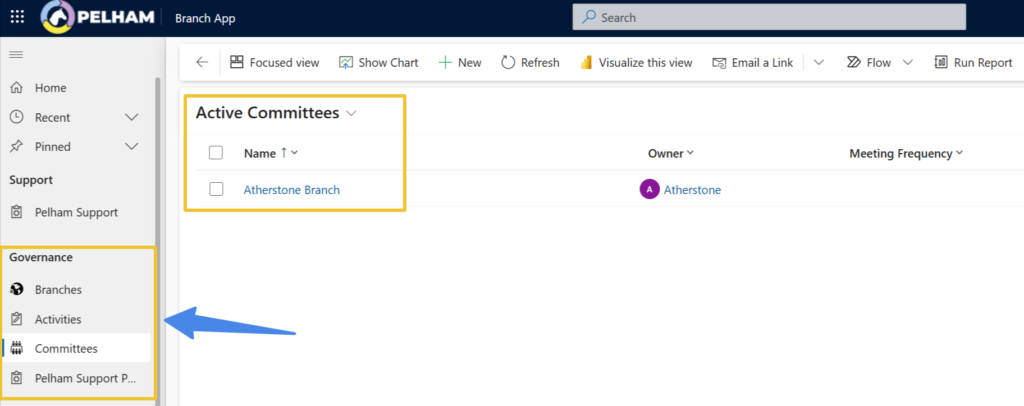
1 – Left Navigation Menu: Governance > Committees > Active Committees
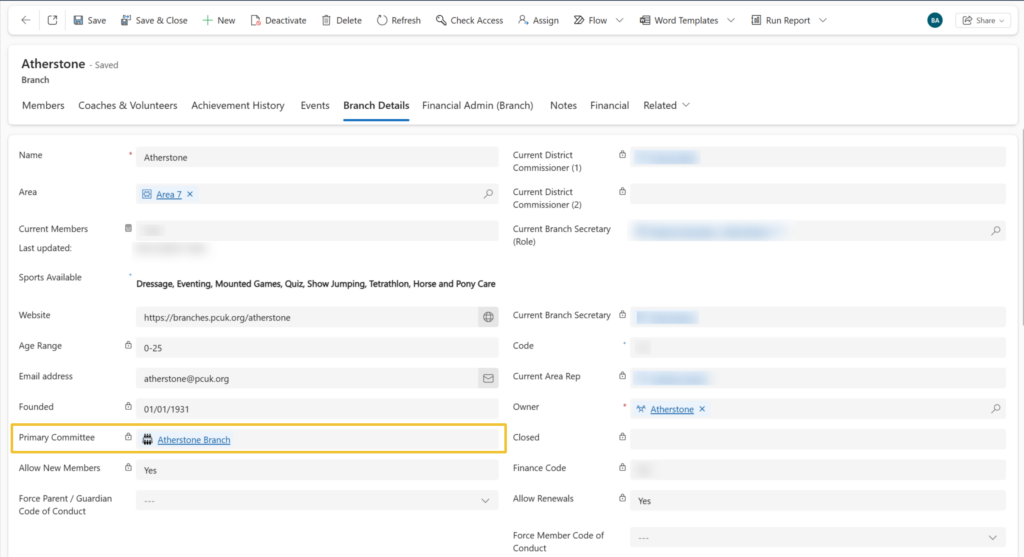
2 – Branch Details Tab
Amending your Branch Committee
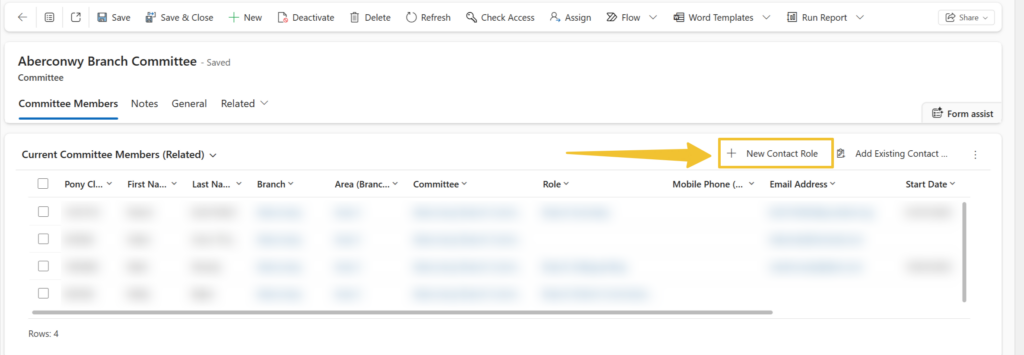
To add the rest of your Branch Committee members, select ‘+New contact role‘ and add as “Branch
Committee” role. If your committee member does not already exist on Pelham you will need to add
their Contact details first, just as you would a new Coach. For details, see the Pelham user guide.
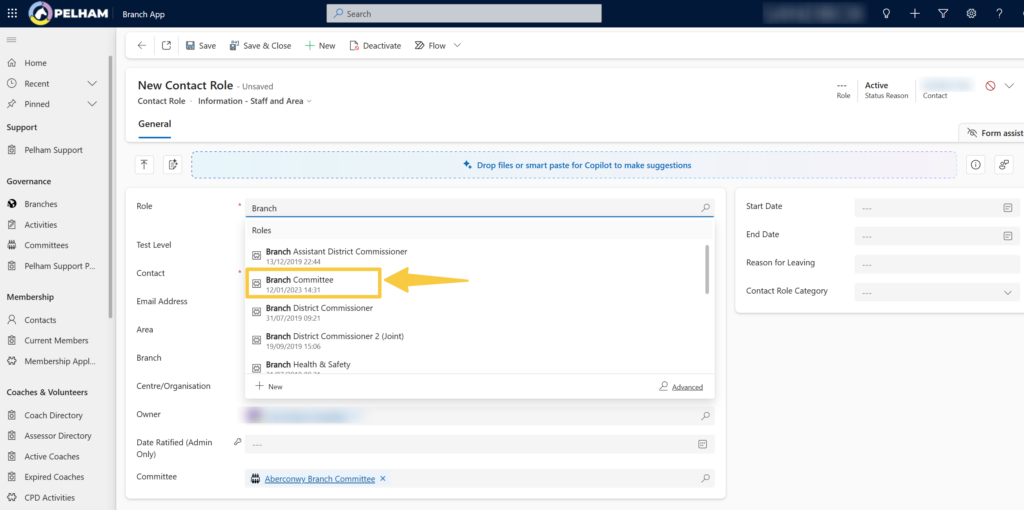
Within the Role Field, search ‘Branch Committee’ and select as a role. Ensure the other relevent fields are filled in as required.
There is a free text Role Description field for you to add the reason the Volunteer is on the committee.
It is strongly advised that all committee members have DBS and Safeguarding in place and these
should be recorded in Pelham.
Declaration Forms and Committee Documents
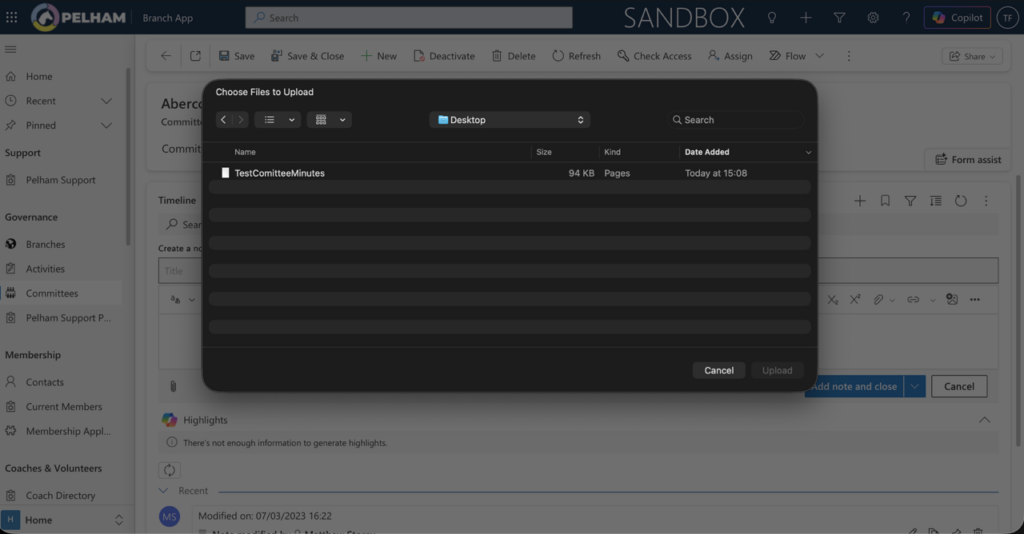
You can also add committee agendas and minutes (Confidential info included in minutes can’t be
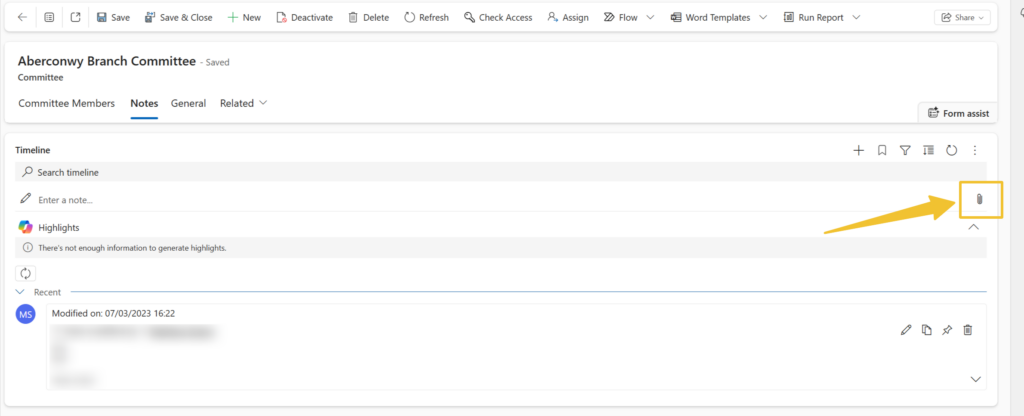
uploaded) in the Notes section of the Committee page: