
What is a View?
A view is a set of records shown in a particular way. Views decide which records appear in a list and what information is displayed about them. You can switch between views to focus on different types of records, and even create personalized views to save specific filters or layouts!
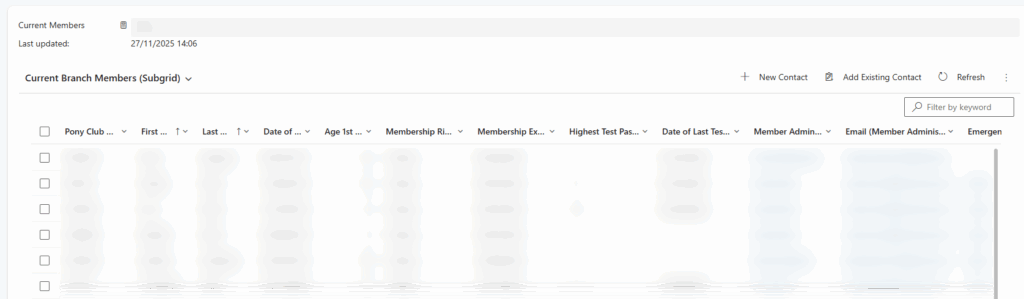
To change View select the drop down indicated by an arrow, this will bring up a drop down with all available system views and any personalized.
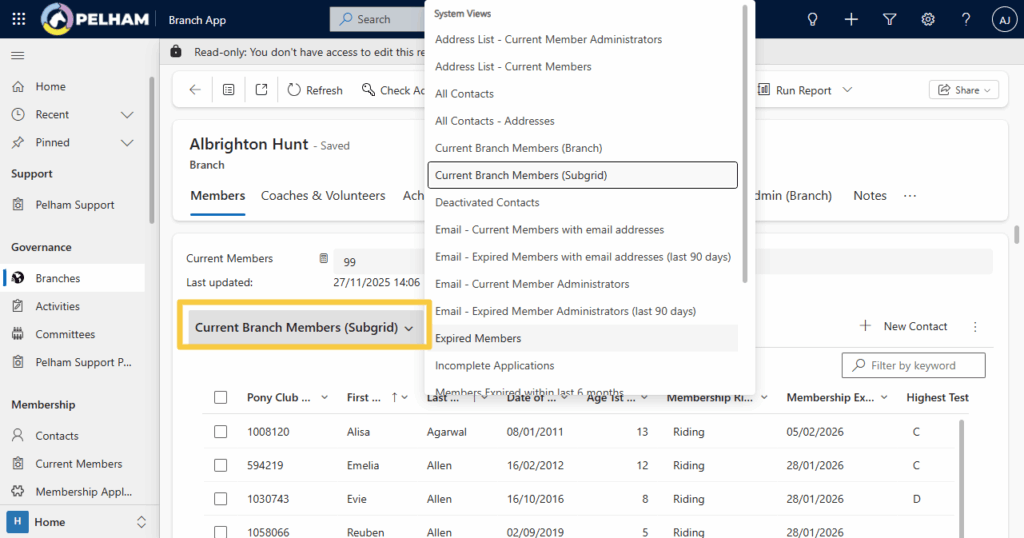
System Views
System Views are the standard lists preconfigured by the technology team within PELHAM. They’re set up centrally and give everyone a consistent way to look at records. You can use them to quickly access common datasets without needing to apply your own filters or changes.
Personalised Views
Personal Views are custom lists you are able to create for yourself. They let you filter, sort, and choose the columns that matter to you, so you can work with data in a way that suits your role. As we have many different preconfigured system views for different use cases, personalized views are not commonly required.
What Views Don’t Do
Views only control how records are displayed — they don’t change records themselves. Switching or customizing a view (removing columns and filtering etc.) won’t edit data, delete anything, or affect what other users can see. A view simply filters and organizes the list on your screen; the underlying information stays exactly the same.
Searching PELHAM
When searching on PELHAM there are multiple places where the search can be initiated
Option 1 – Global Search
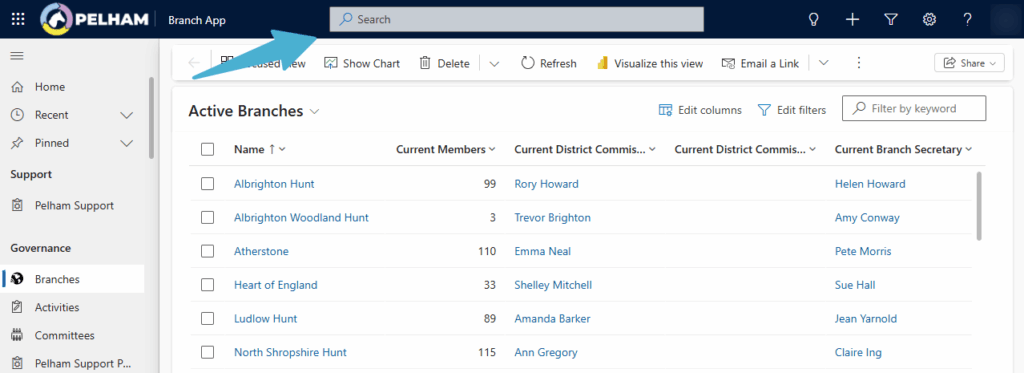
The global search is found at the top of every screen on PELHAM, this search will look at the entirety of the system (everything you have access to). This makes it good to quickly find Contacts that you have the Pony Club ID or relevant email for.
All records matching the search text input will be returned, regardless of Membership status so the more precise your search, the more accurate the results.
Option 2 – Searching Views
You are able to search directly within Views, this is useful if you already known the location of what you are looking for but not the exact data. For example, looking for a member within your Area or Branch when you only have the Name



